Databases

Design, implementation, and querying of relational databases applied to a real-world UK Elections dataset. This module covers ERD modelling, SQL development, and a full-stack Flask web application for data visualisation and electoral calculations.

Executive Summary

This module focused on the full lifecycle of database development — from conceptual entity-relationship design through to a deployed web application. Using a UK Elections dataset, an ERD was constructed and annotated, SQL dumps were engineered to populate a relational database, and a Python Flask application was built to expose electoral data and calculations through a web interface. Key deliverables include annotated ERD diagrams, SQL implementation files, a Flask web app with templating, and a full academic report documenting the process.

Key Highlights

Grade

2:1 / Merit

Technologies

Python, Flask, SQL, SQLite/MySQL, HTML Templates

Focus Area

Database Design, ERD Modelling, Web Application Development

Academic Report (Word)

Full academic documentation covering database design rationale, ERD construction, SQL implementation, Flask app architecture, and evaluation.

Download Academic Report (Word) →

Entity Relationship Diagram (ERD)

The ERD was designed to model the UK Elections dataset, defining entities, attributes, and relationships across the relational schema.

ERD Diagram (PDF)

Combined ERD diagram exported as PDF, showing the full relational structure.

Download ERD PDF →

Diagram Annotations (Word)

Detailed written annotations explaining design decisions for each entity and relationship in the ERD.

Download Annotations (Word) →

ERD Preview

Download ERD PDF →

SQL & Calculation Snippets

Key SQL queries and electoral calculation logic developed as part of the database implementation and analysis phase.

Download the key SQL and calculation snippet files used throughout the module.

Download SQL Snippets (ZIP) →

UK Elections Flask Web Application

A full-stack web application built with Python Flask, connected to the elections database. The app exposes electoral data through dynamic routes, uses Jinja2 HTML templates for rendering, and includes the UK2019ElectionCalc.py script for complex electoral seat calculations.

app.py

Main Flask application — defines routes, database queries, and view logic for the UK Elections web interface.

Download app.py →

models.py

Database models defining the schema used by the Flask app, mapping Python objects to relational tables.

Download models.py →

UK2019ElectionCalc.py

A 41KB calculation script implementing complex UK 2019 General Election seat and vote share logic.

Download Calc Script →

Download the full Flask project as a ZIP — includes app source, models, templates, and election calculation scripts.

Download Full Flask Project (ZIP) →

Technical Breakdown

Project Screenshots

SQL Database
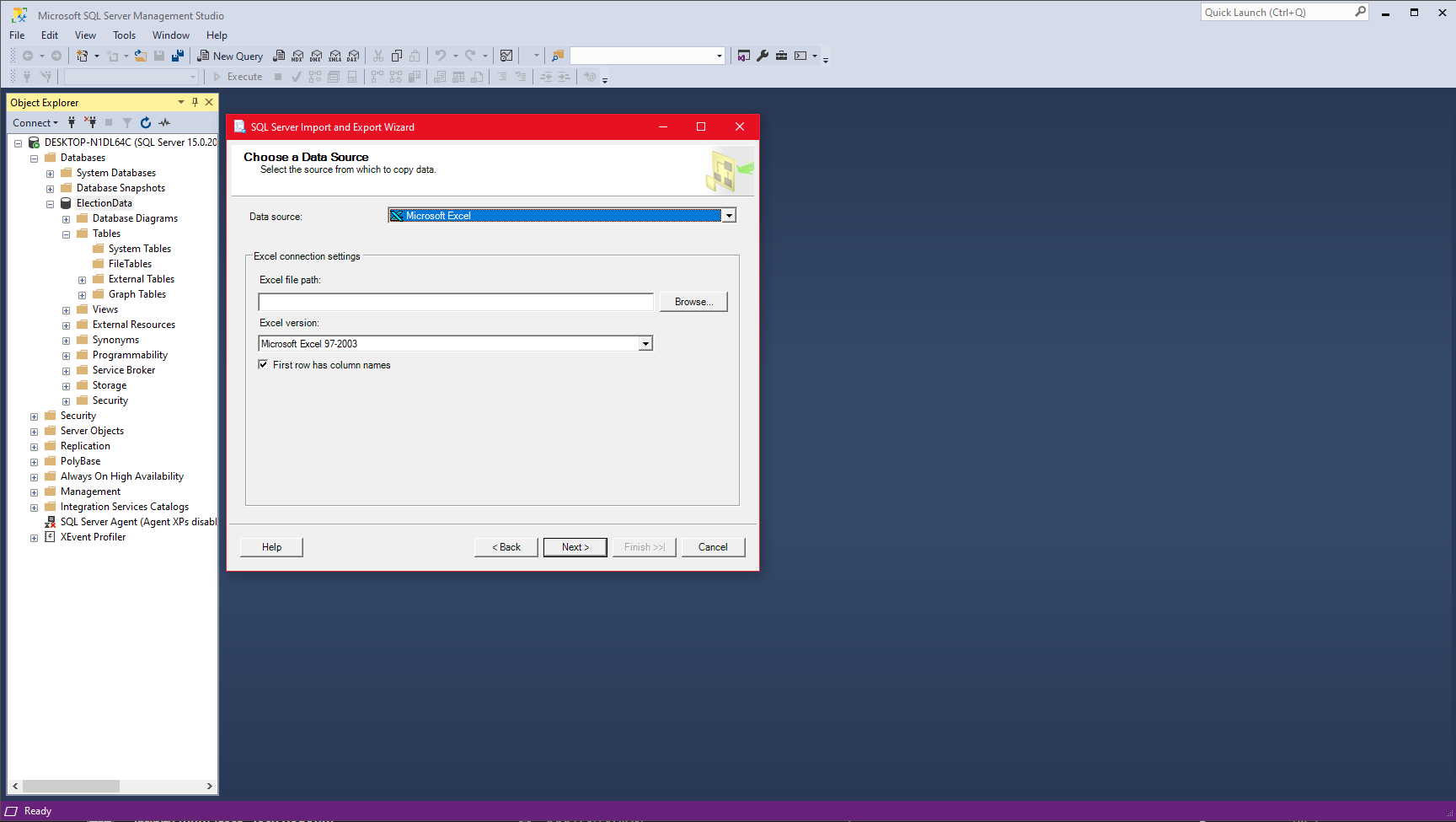
Importing Data from Excel to Database

1. Importing Data from Excel to Database
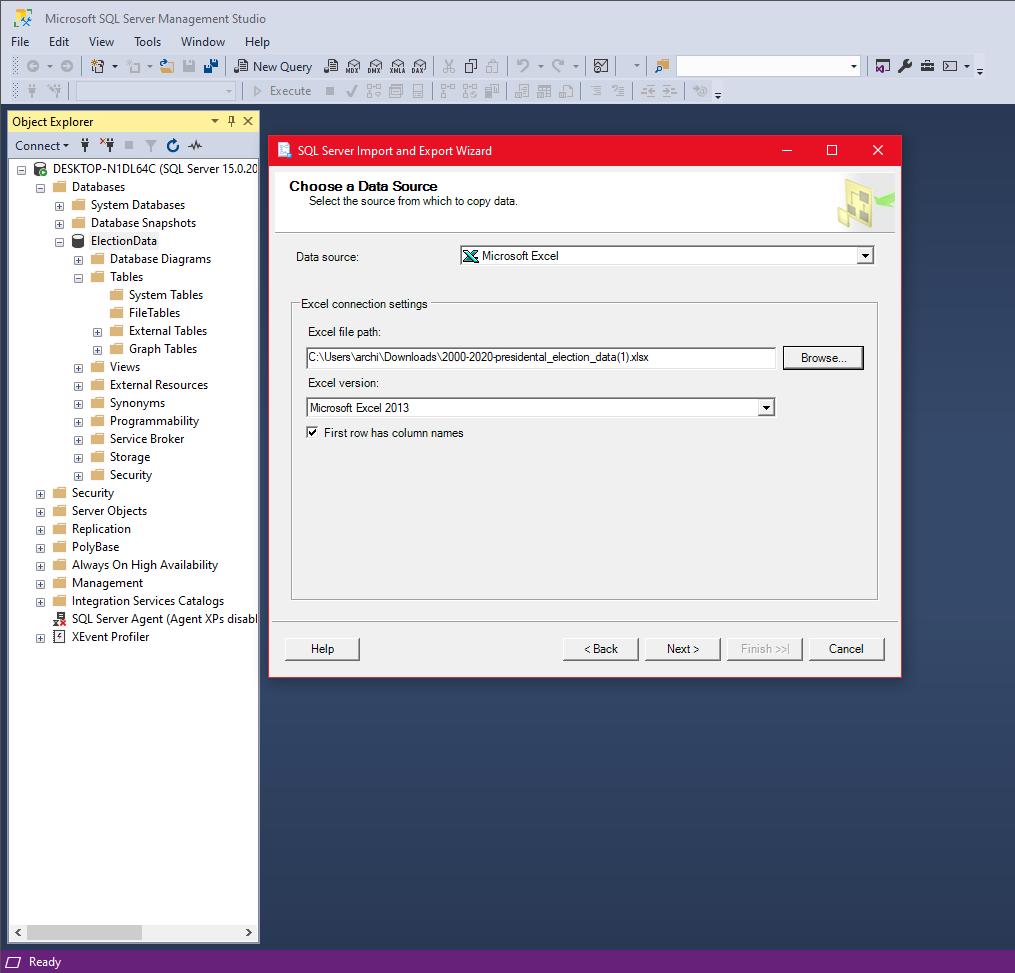
Selecting Presidential Election Data

2. Selecting Presidential Election Data
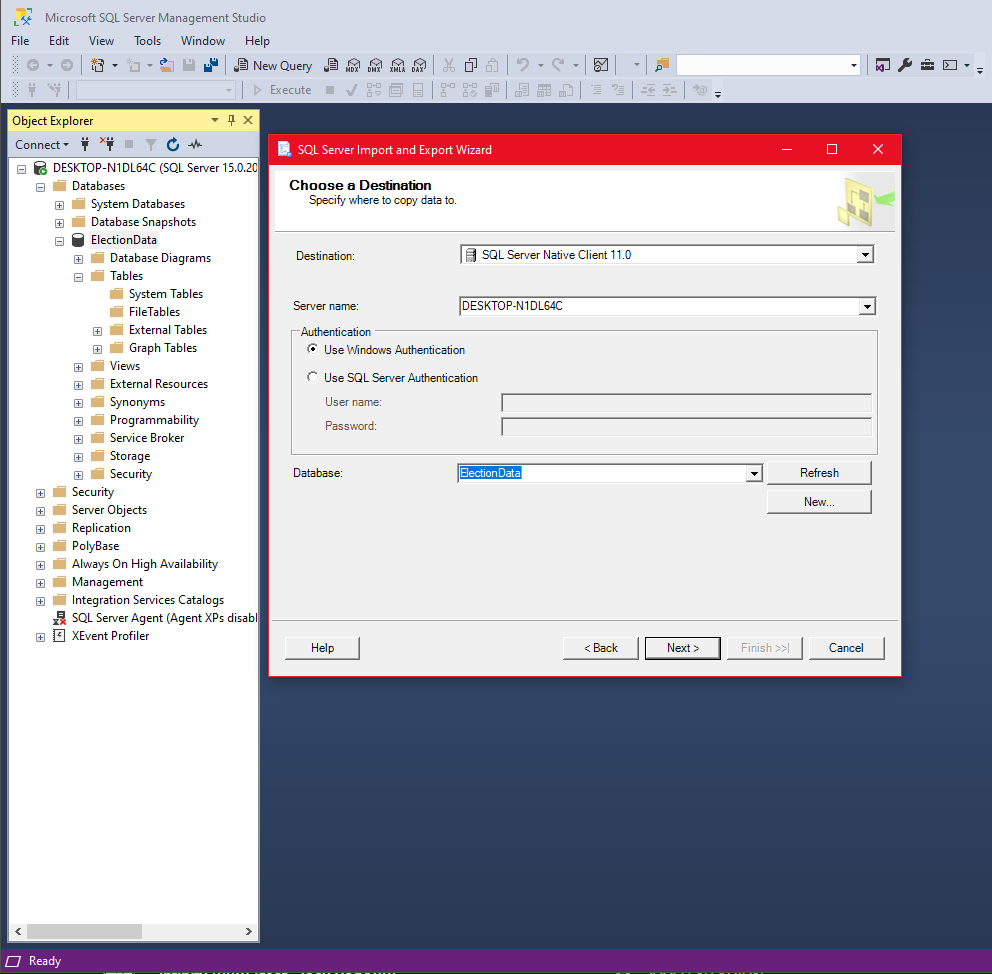
Set Destination of Copy Excel to Database
3. Set Destination of Copy Excel to Database

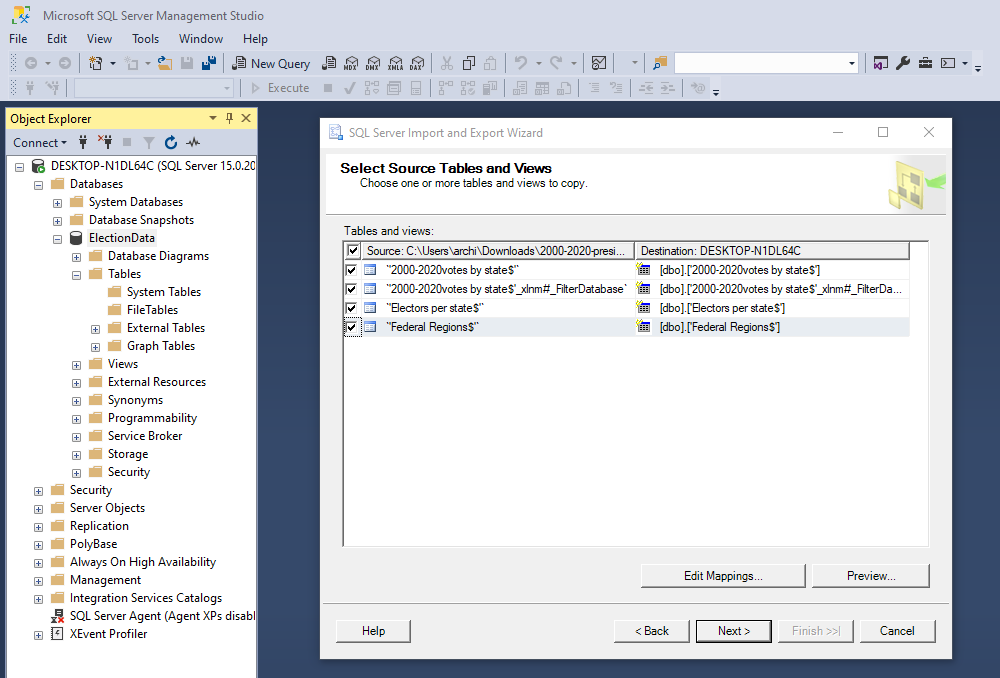
Selecting Source Table and Views

4. Selecting Source Table and Views

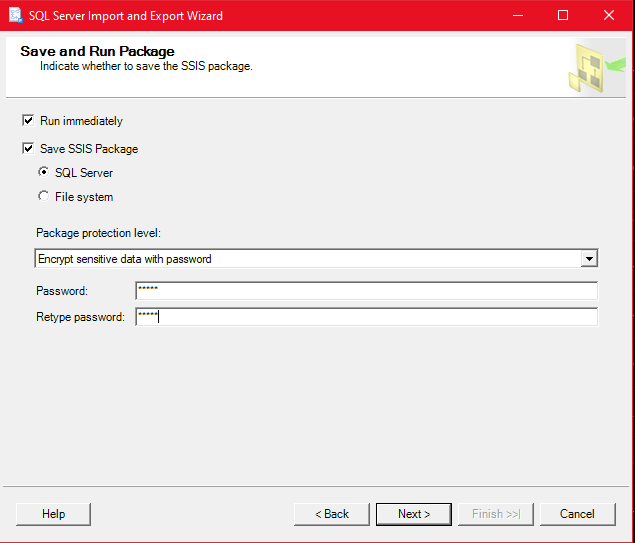
Run and Save as SSIS Package

5. Run and Save as SSIS Package & Encrypt Sensitive Data
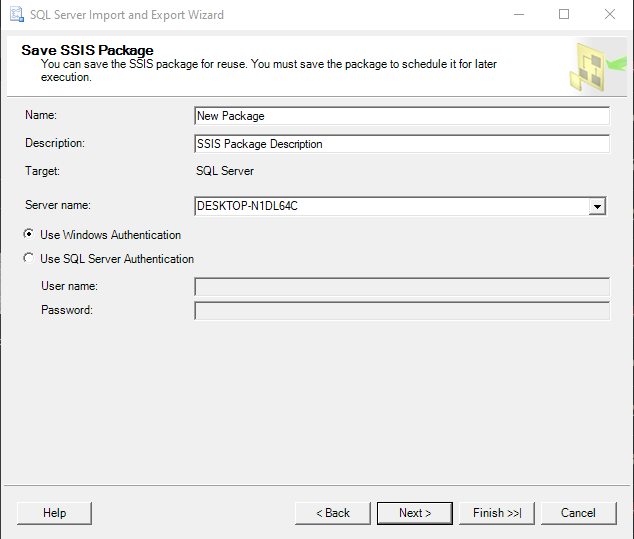
Saving SSIS Package using Windows Auth

6. Saving SSIS Package using Windows Authentication
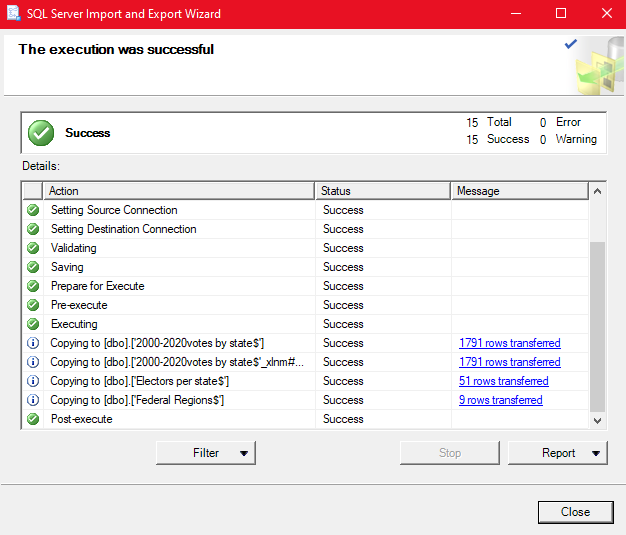
Success Table and Data Implemented

7. Success — Table and Data Implemented
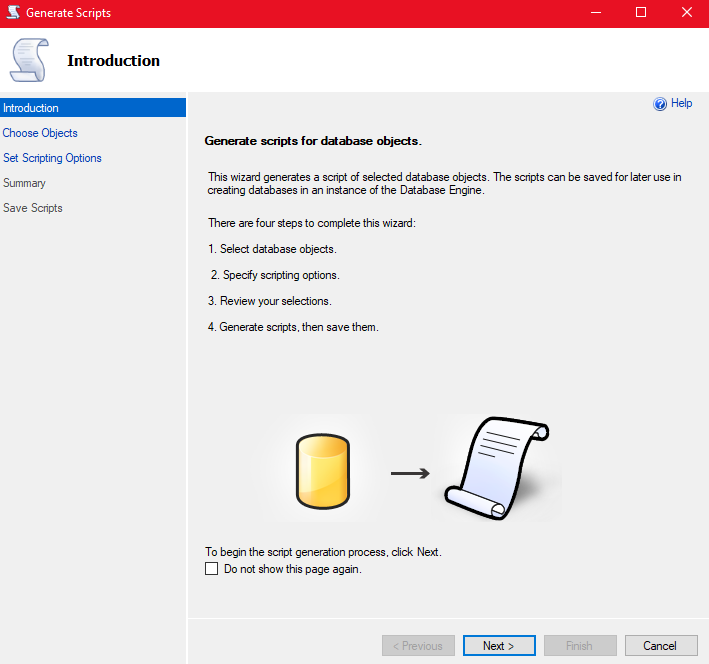
Generating SQL Creation Scripts

8. Generating SQL Creation Scripts and Insert Scripts
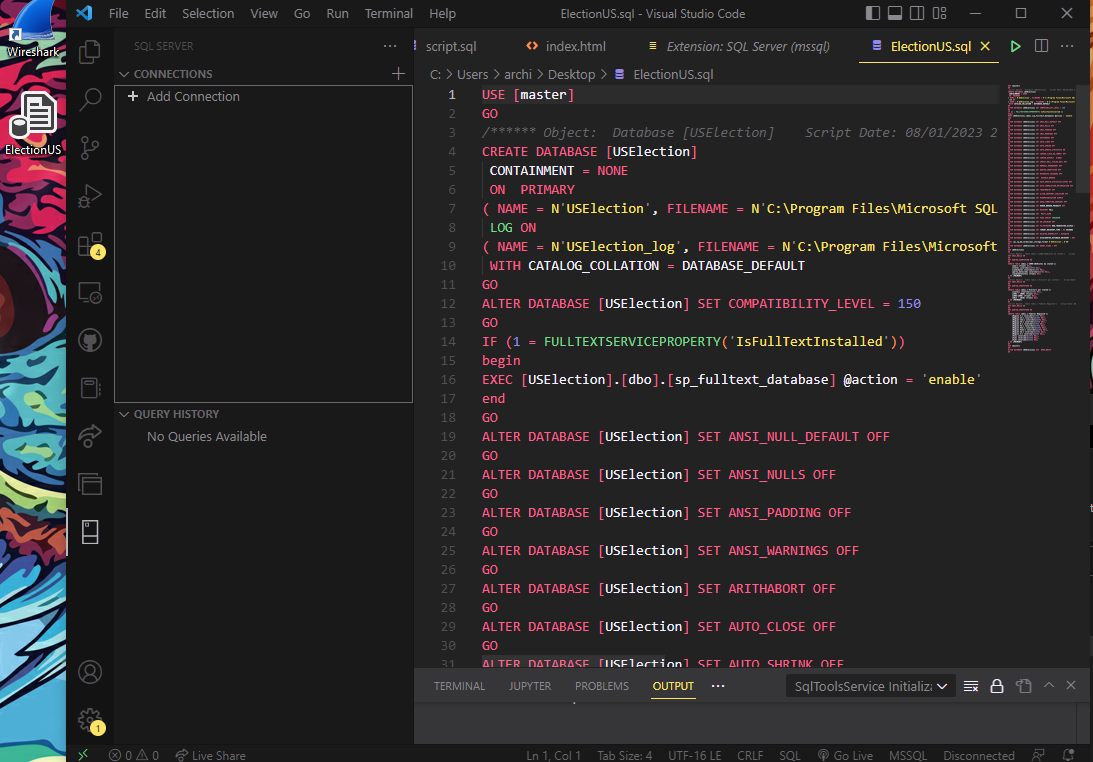
Script Generated

8.5. Script Generated

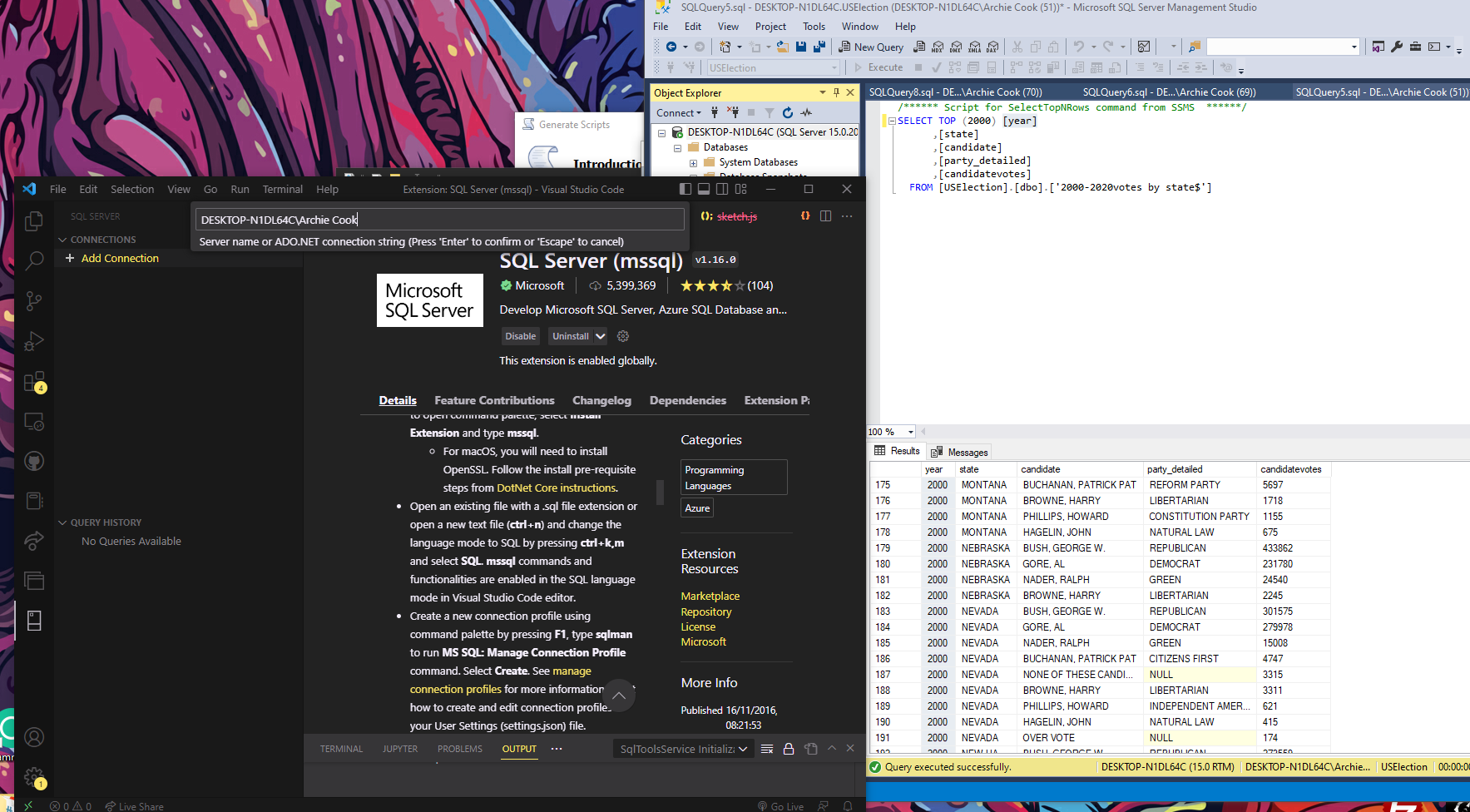
Connecting Database to VSCode

9. Connecting Database to VSCode

Step 9.4

9.4. Database Connection Progress

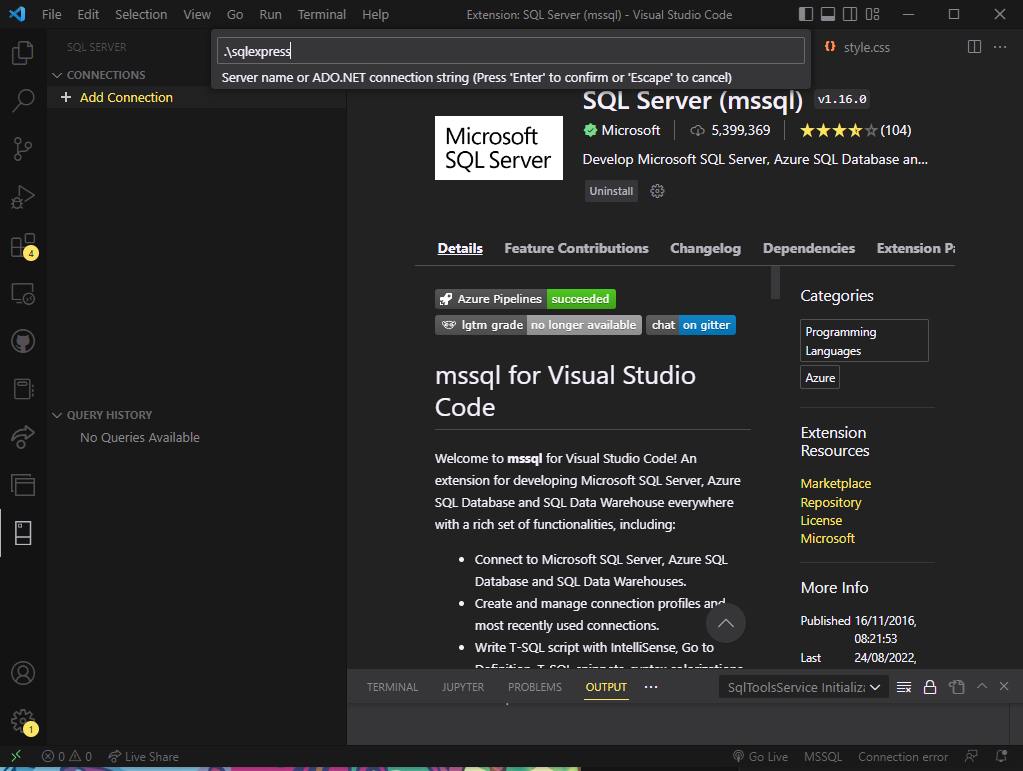
Second Attempt to Connect to VSCode

9.5. Second Attempt to Connect to VSCode

SQL Integrate Setting

9.6. SQL Integrate Setting

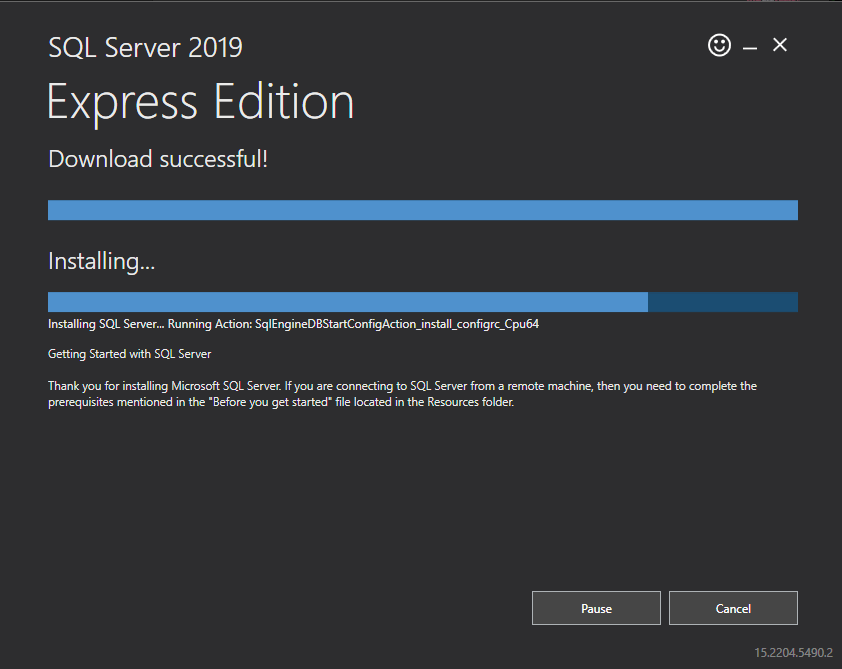
Redownload SQL Server

10. Had to Redownload SQL Server Dev as Express
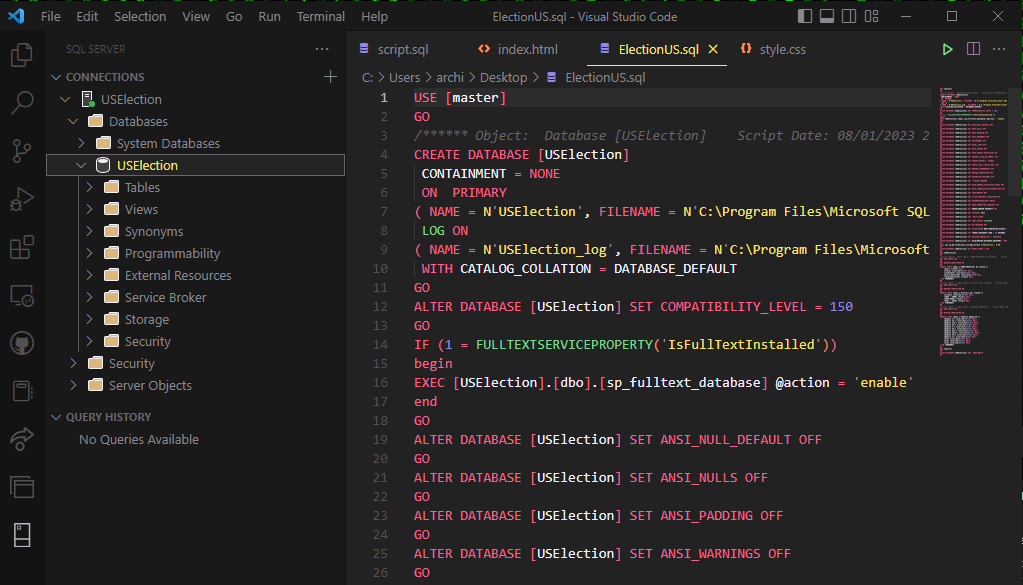
Connected SQL Server to VSCode

11. Connected SQL Server to VSCode

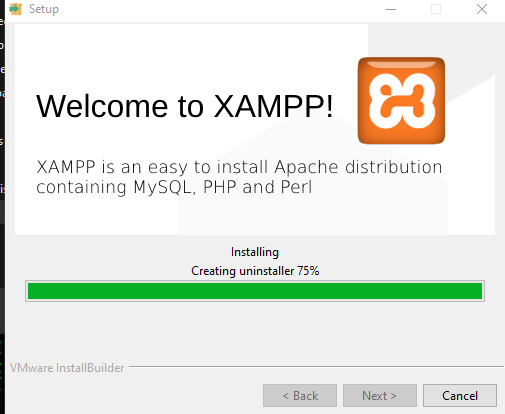
Installing XAMPP

12. Installing XAMPP for Apache and phpMyAdmin
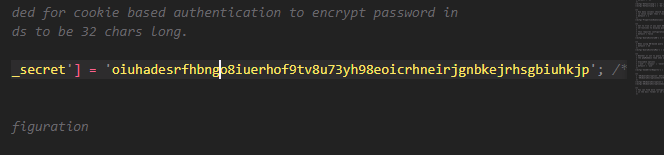
Setting phpMyAdmin Cookie

12. Setting Random Cookie String for phpMyAdmin
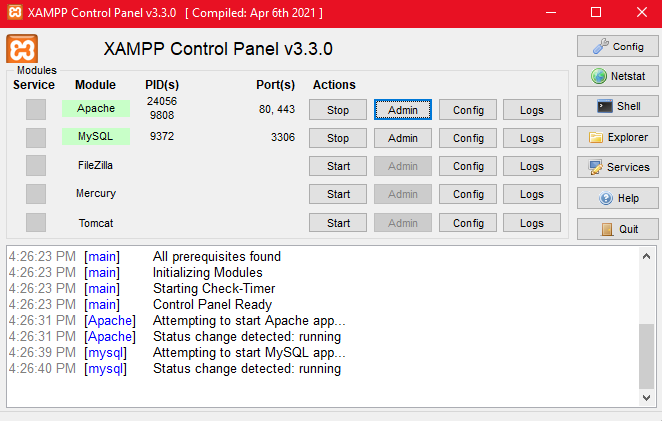
Running Apache and phpAdmin

13. Running Apache and phpMyAdmin through XAMPP
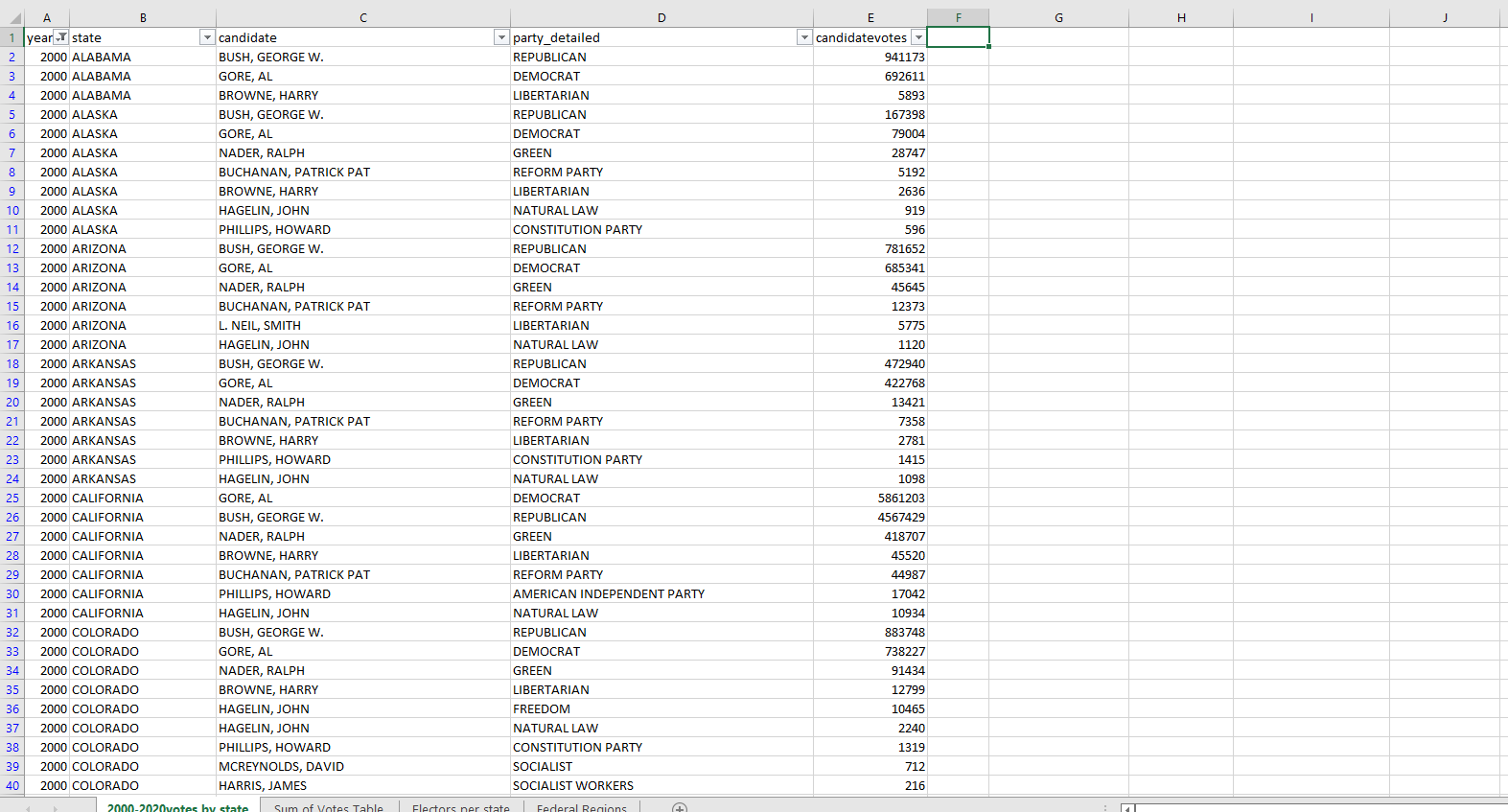
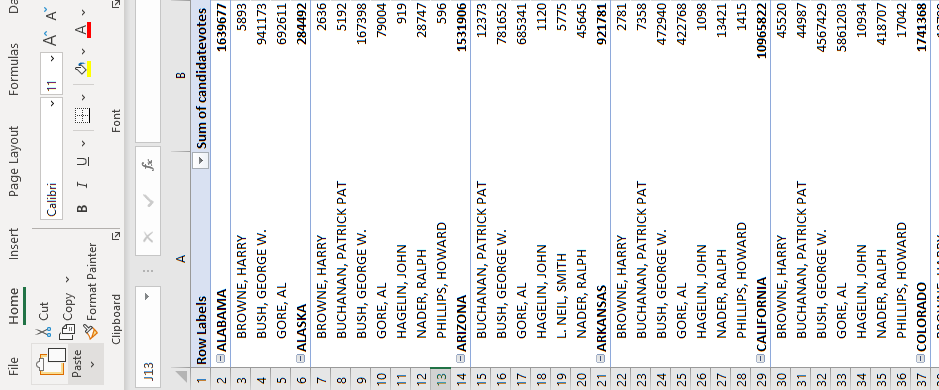
Reconfiguring Excel Sheet

14.1. Reconfiguring Excel Sheet

Pivot Table for Database Format

14.2. Pivot Table Made to Fit Database Format with Full Sum
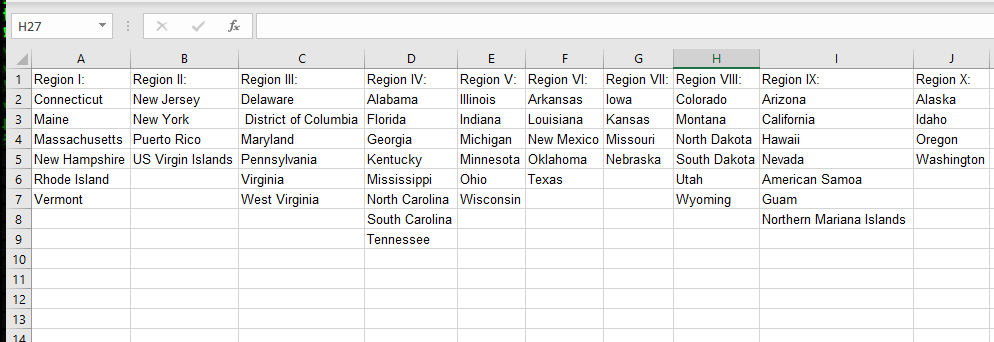
Regions Working on Database

14.3. Made Regions Work on Database to Use Each Field
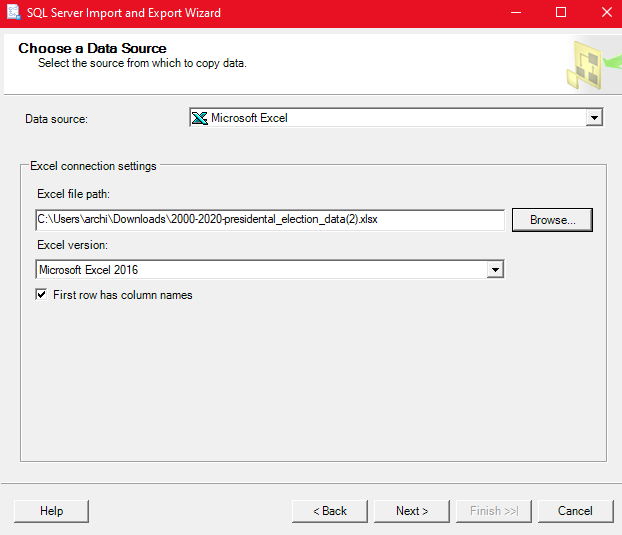
Adding Pivot Table to SQL Database

15. Adding Pivot Table to SQL Database
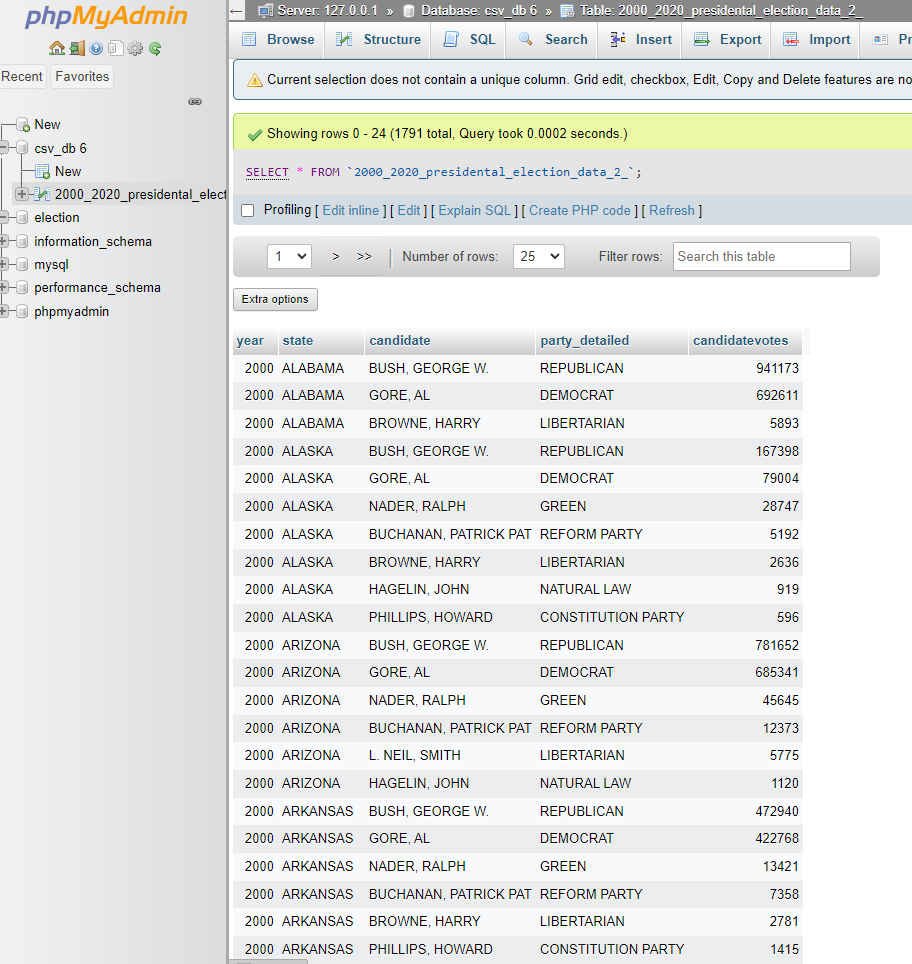
Imported to PHP Admin

16. Imported to PHP Admin

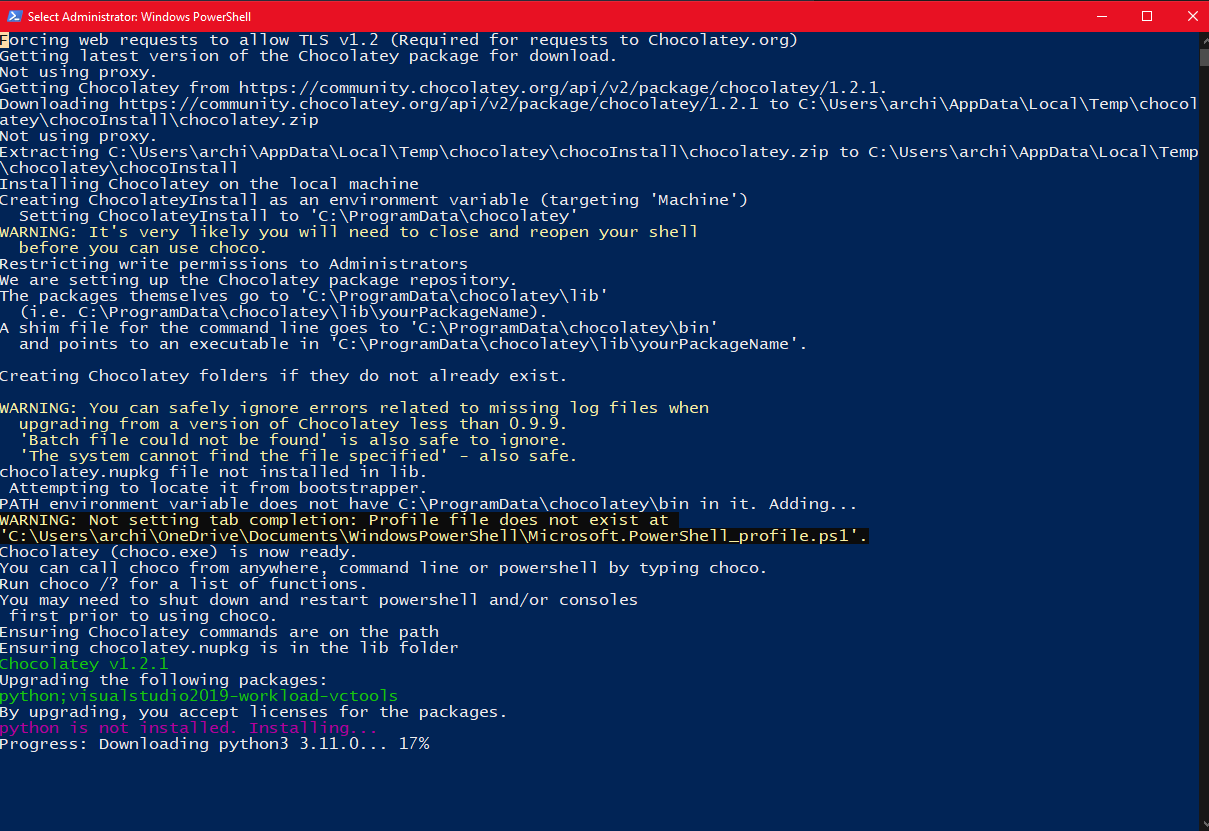
Installing Node JS and Python

17. Installing Node.js and Python

Flask Web Application
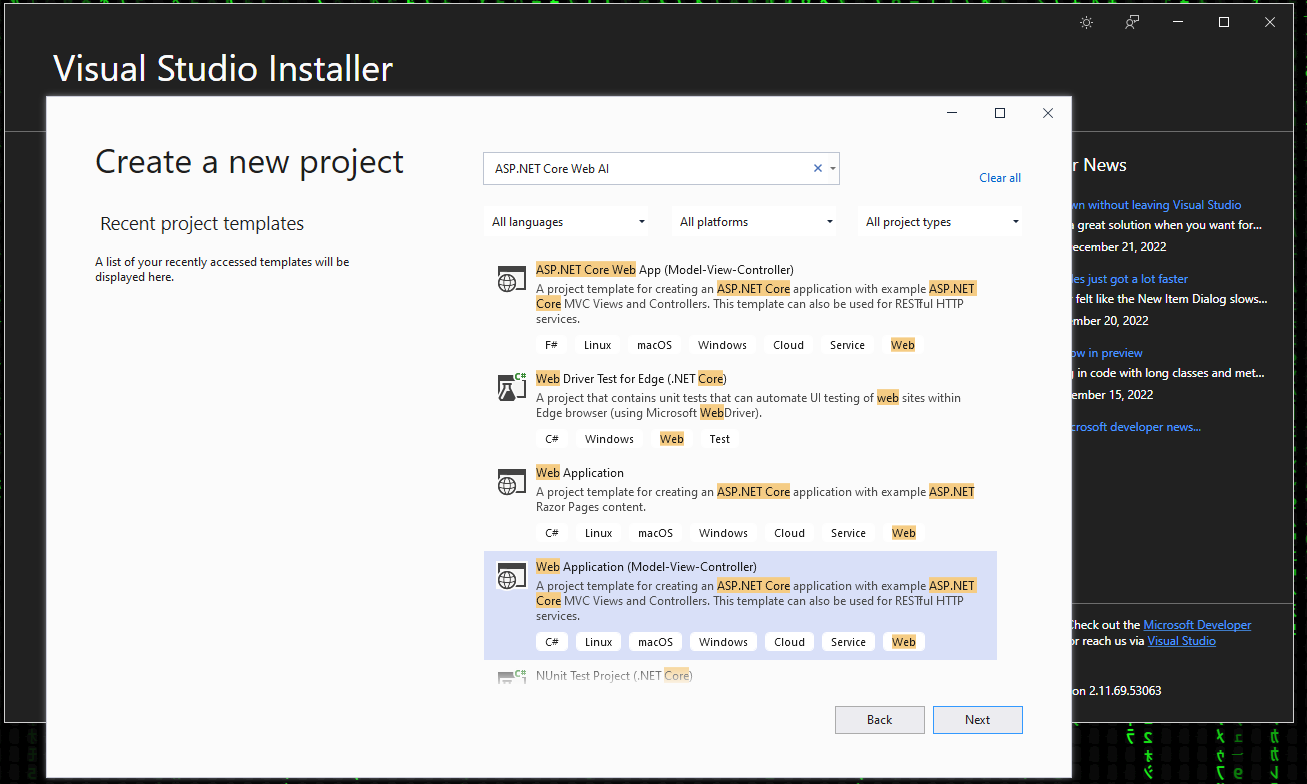
Creating Web Application Project

1. Creating Web Application Project

Enable CORS in Startup.cs

2. Enabling CORS in Startup.cs

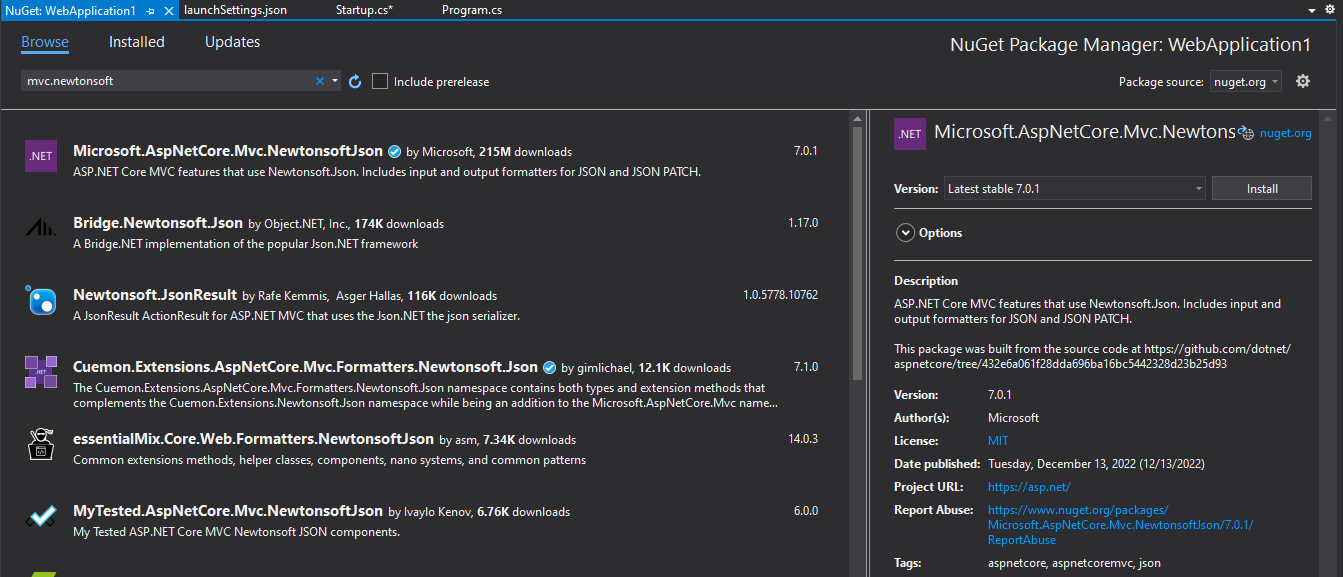
Installing NuGet Package

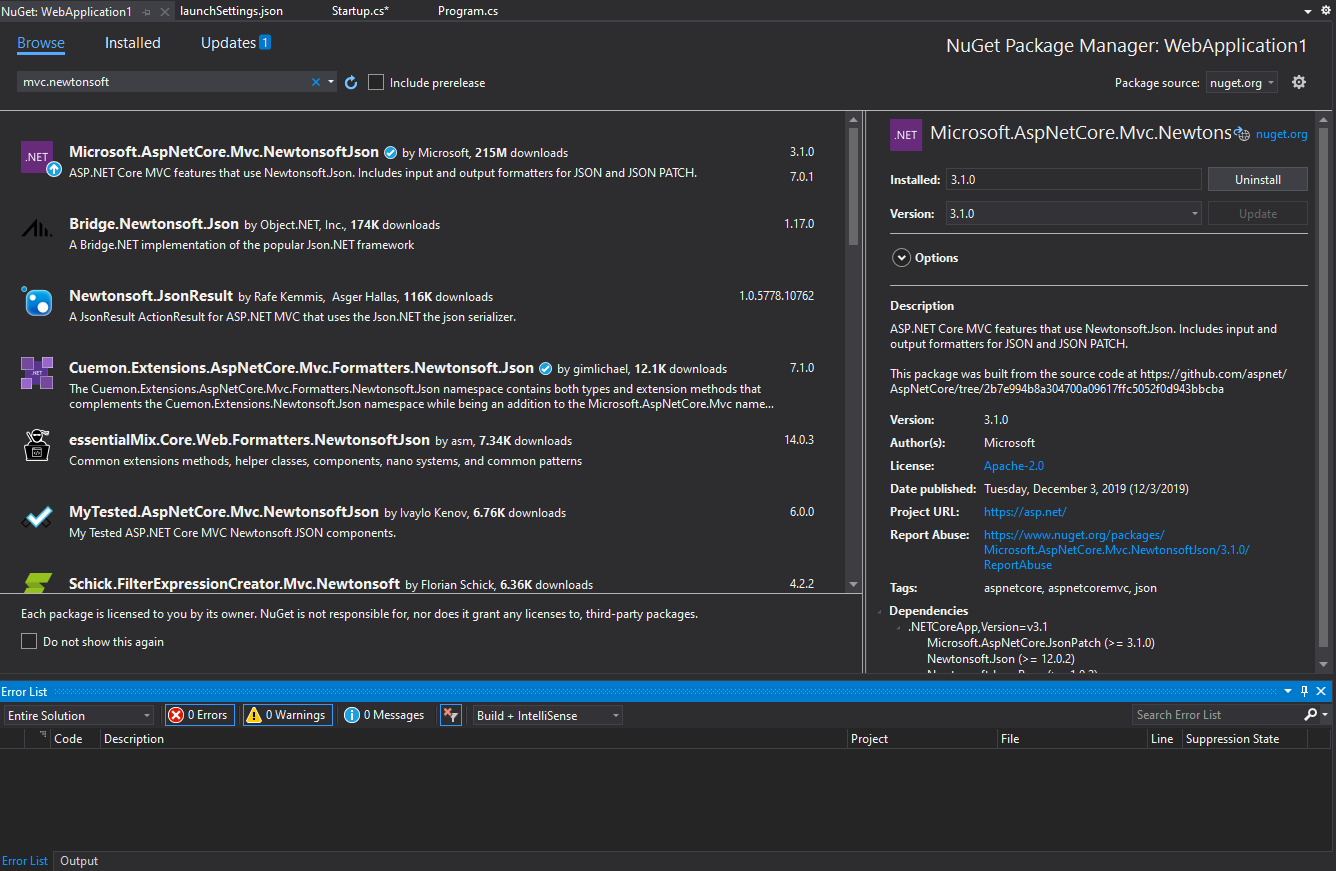
3. Installing NuGet Package for JSON Serialisation
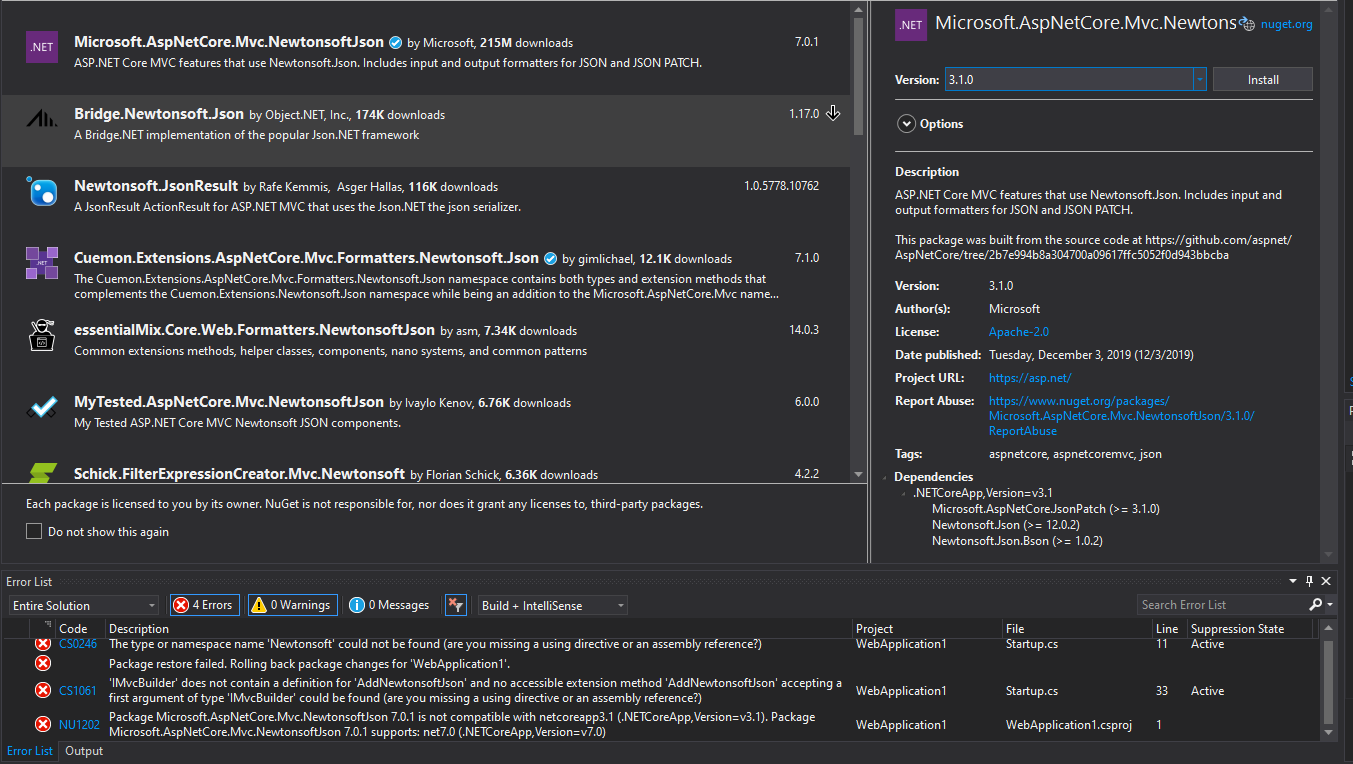
Install Version 3.1.0

3.5. Installing Version 3.1.0

Newton Package Installed

3.6. Newton Package Installed

Connecting Database to Web Application

4. Connecting Database with Election Data to Web Application
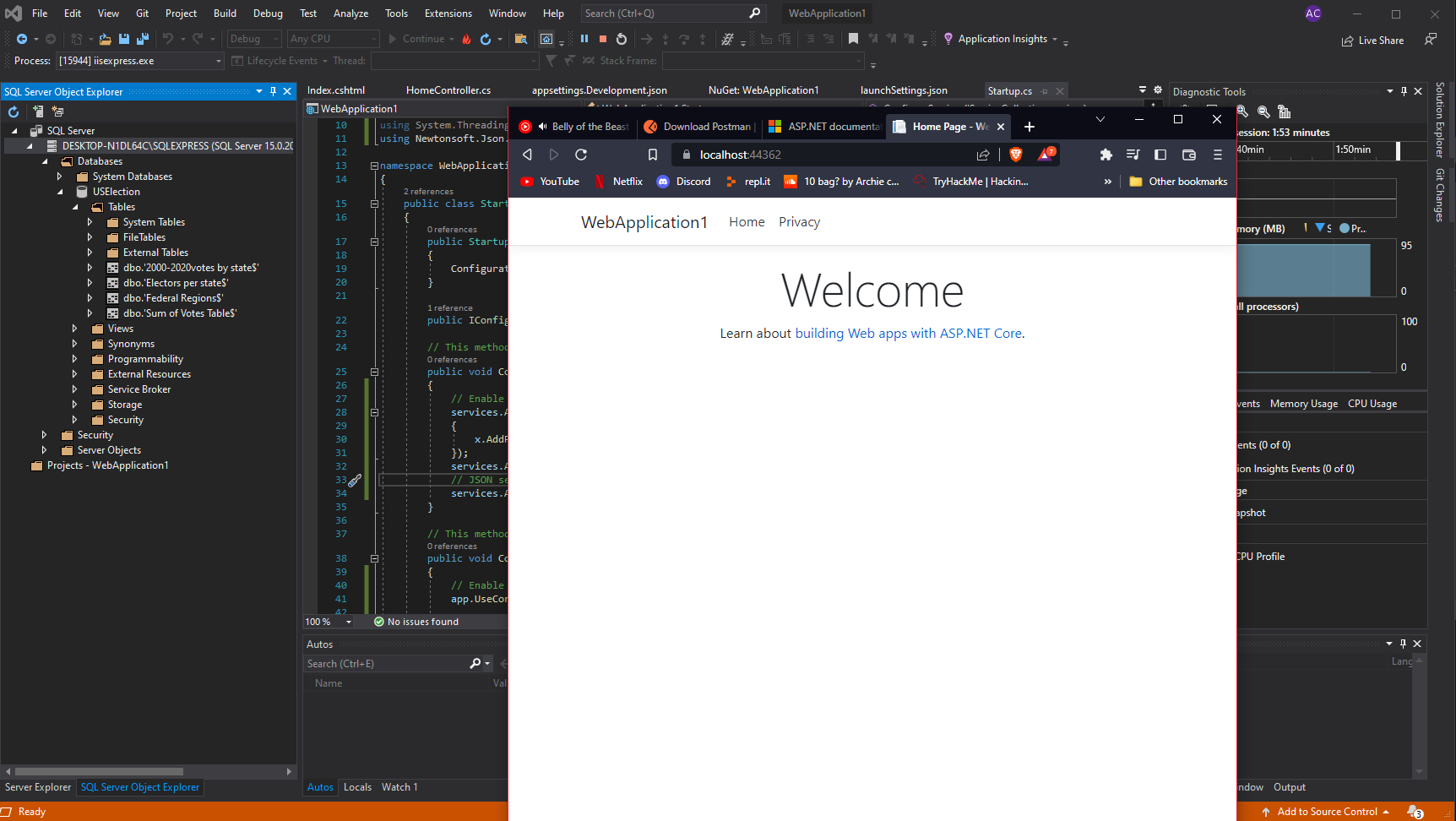
Testing C# Web App Template

5. Testing C# Web App Template Compiles and Loads
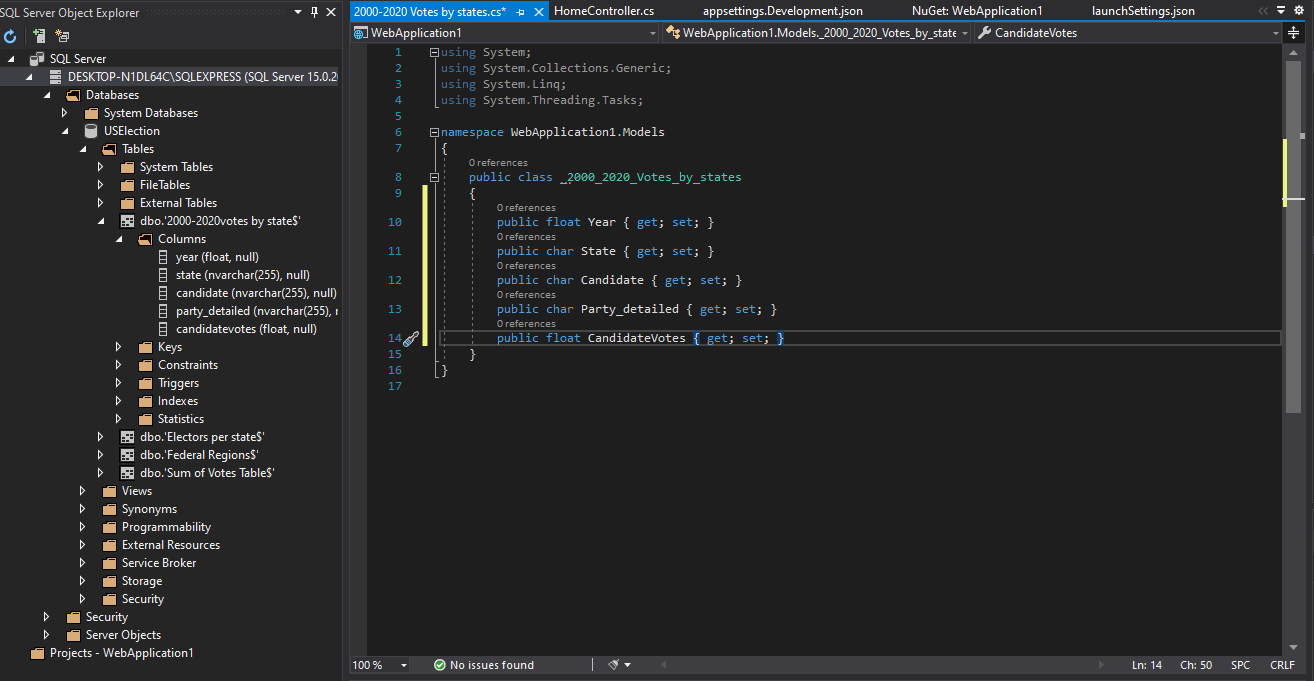
Setting Up Class to Import Data

6. Setting Up Class to Import Data from Database
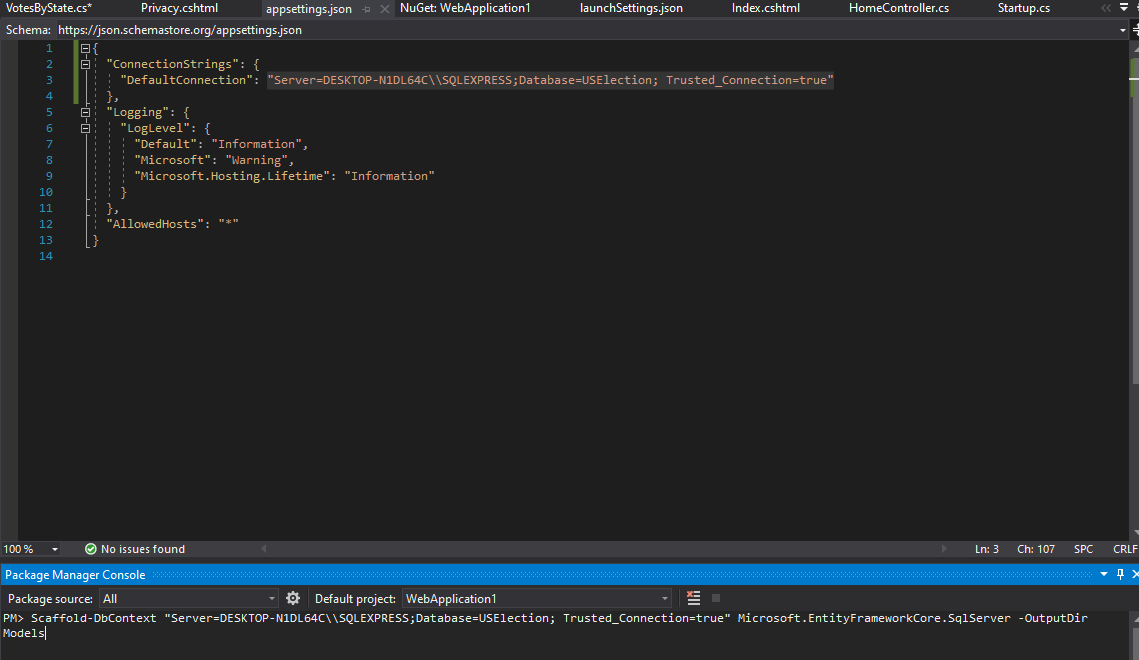
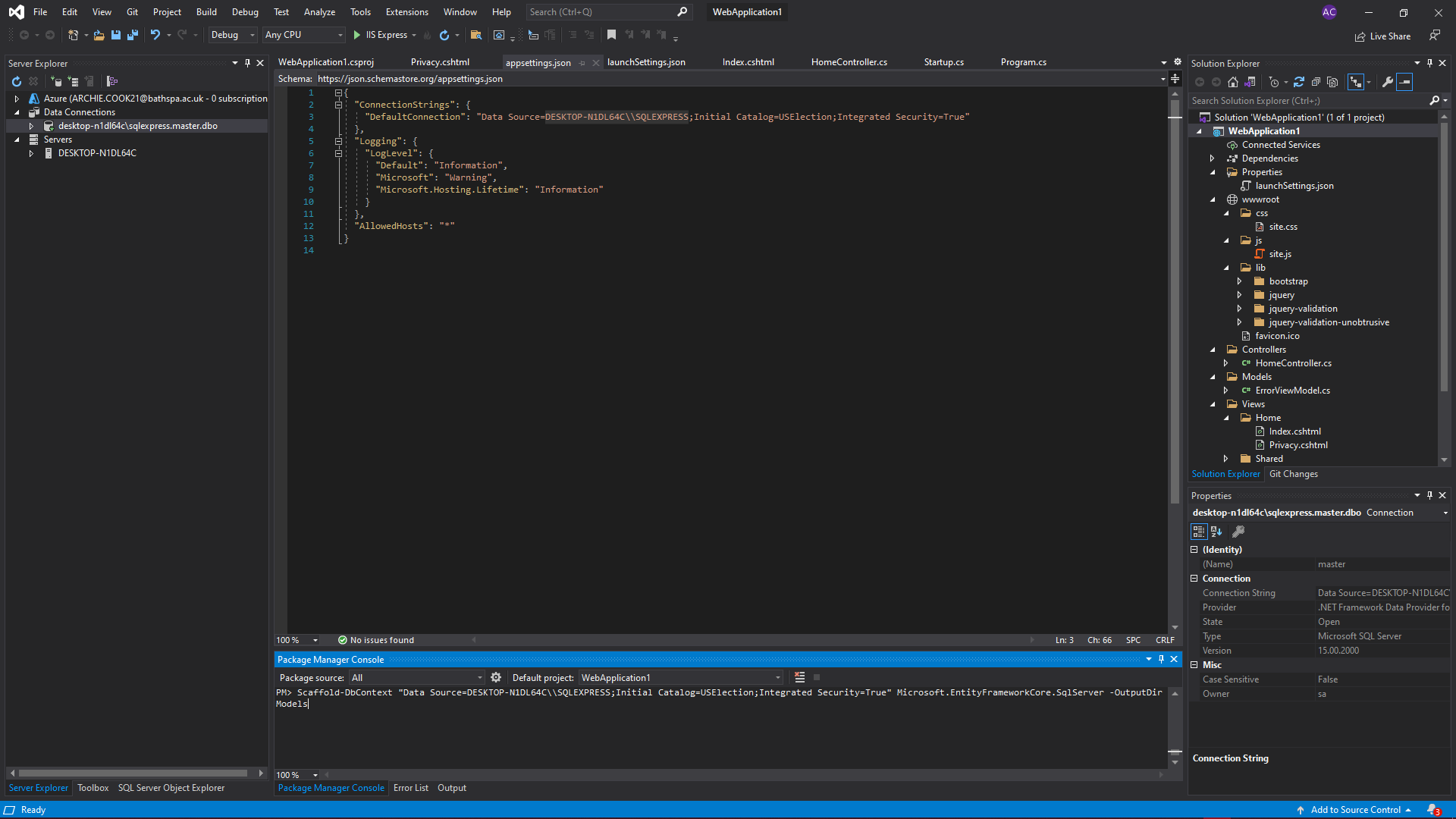
Setting Default SQL Connection

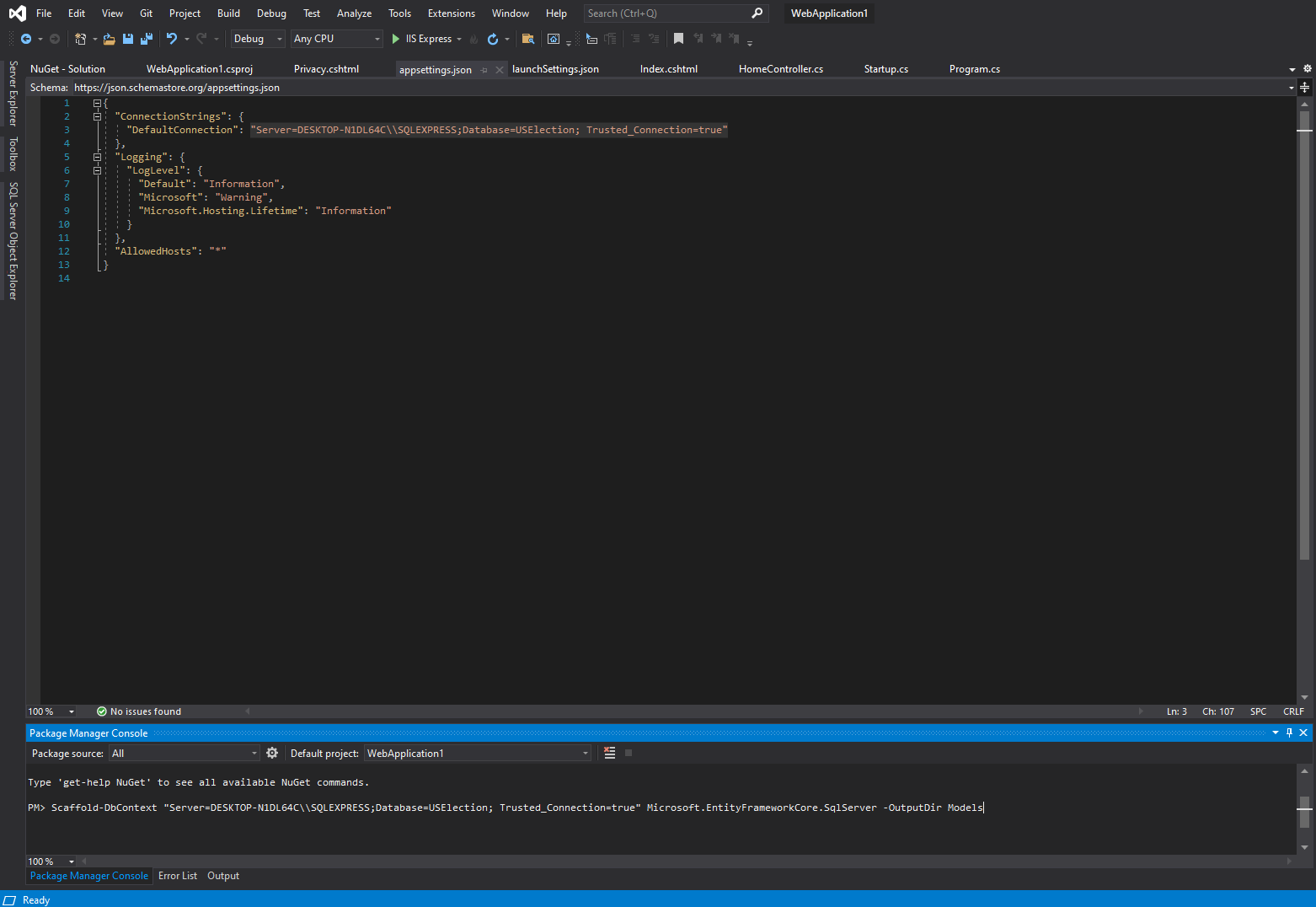
6.1. Setting Default Connection to SQL Database
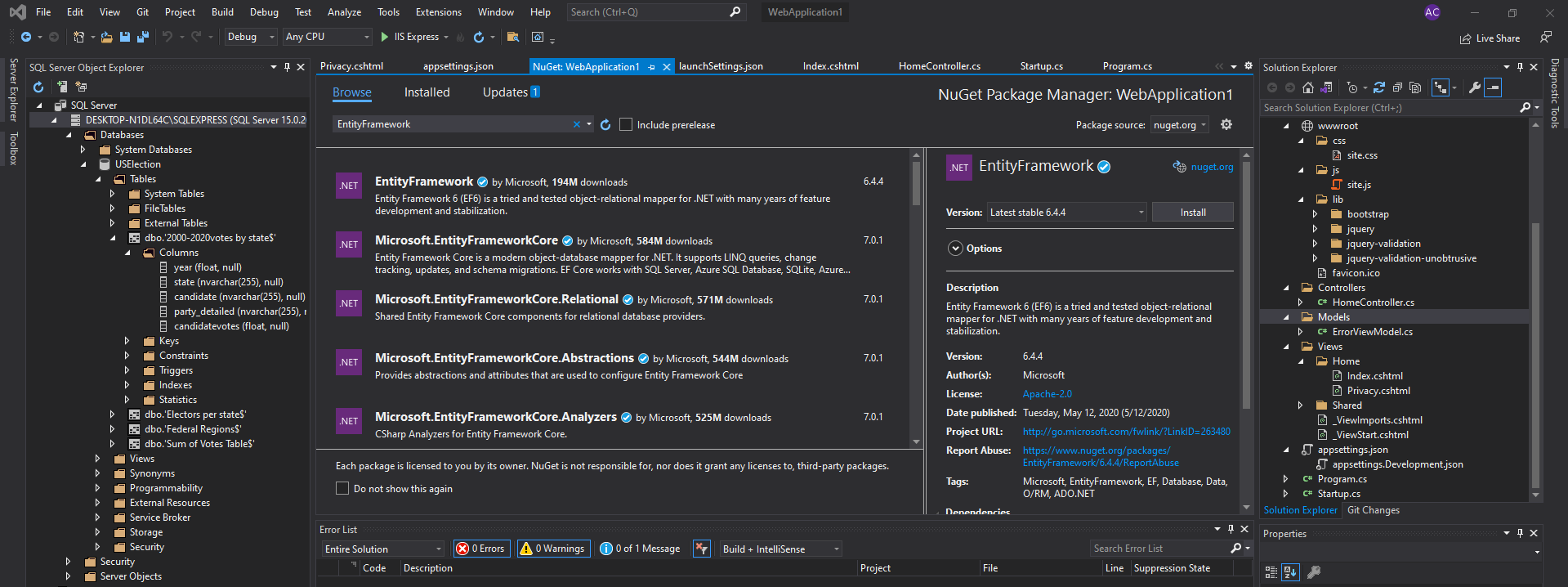
Installing Entity Framework

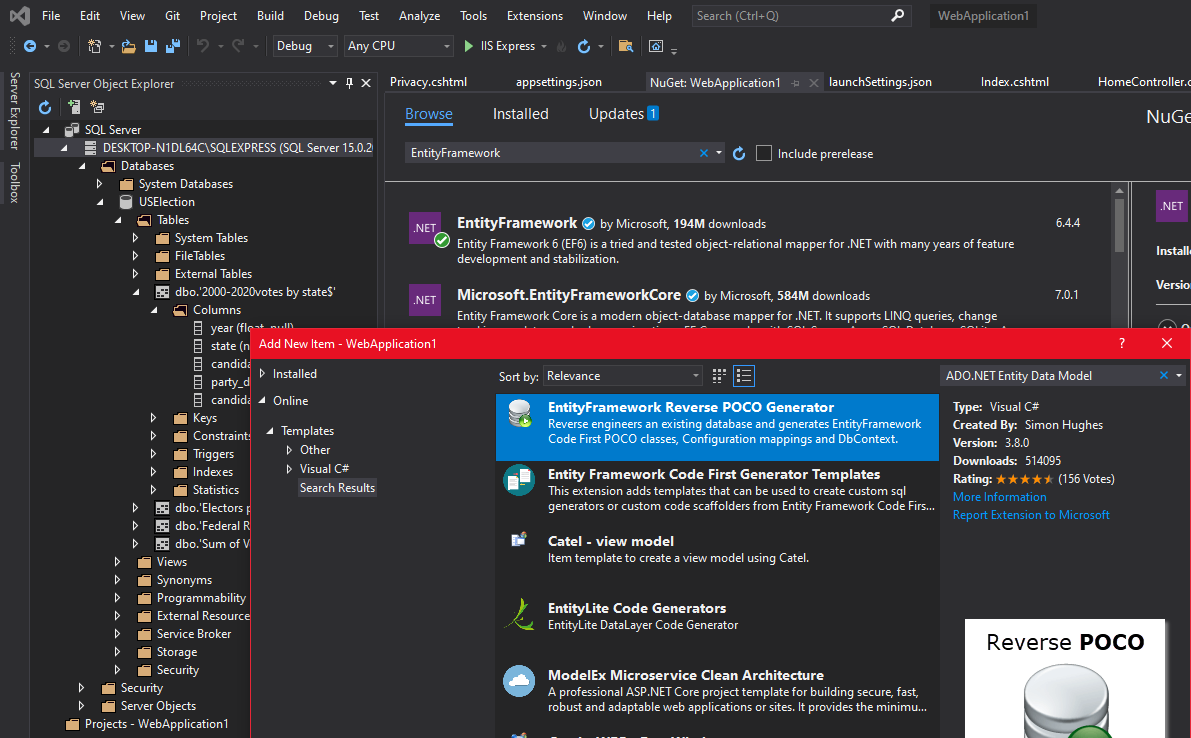
6.2. Installing Entity Framework

Installing DB Reverse Engineering Tool

6.3. Installing Database Reverse Engineering Tool
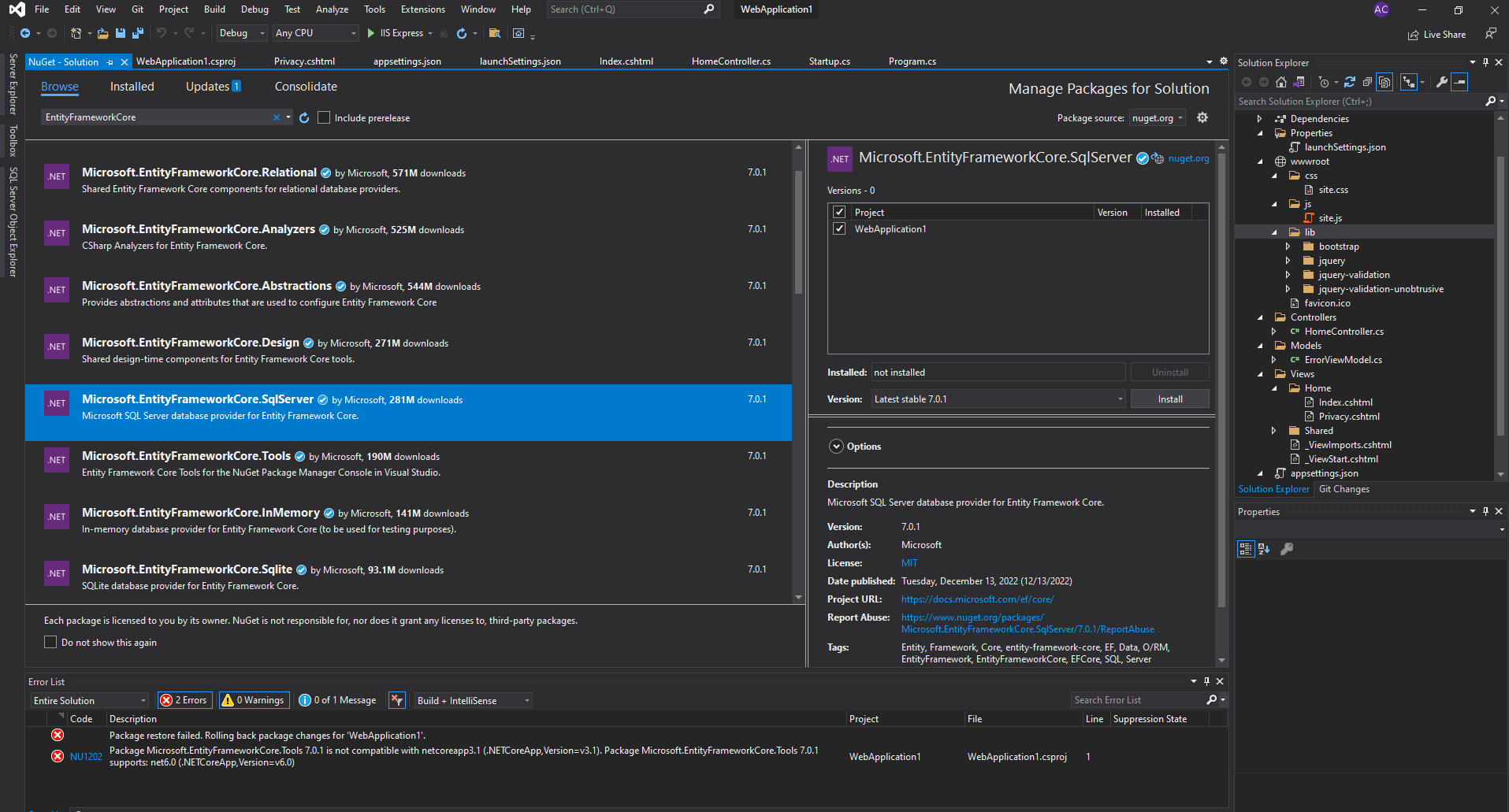
Installing Entity Frameworks

6.4. Installing All Necessary Entity Frameworks
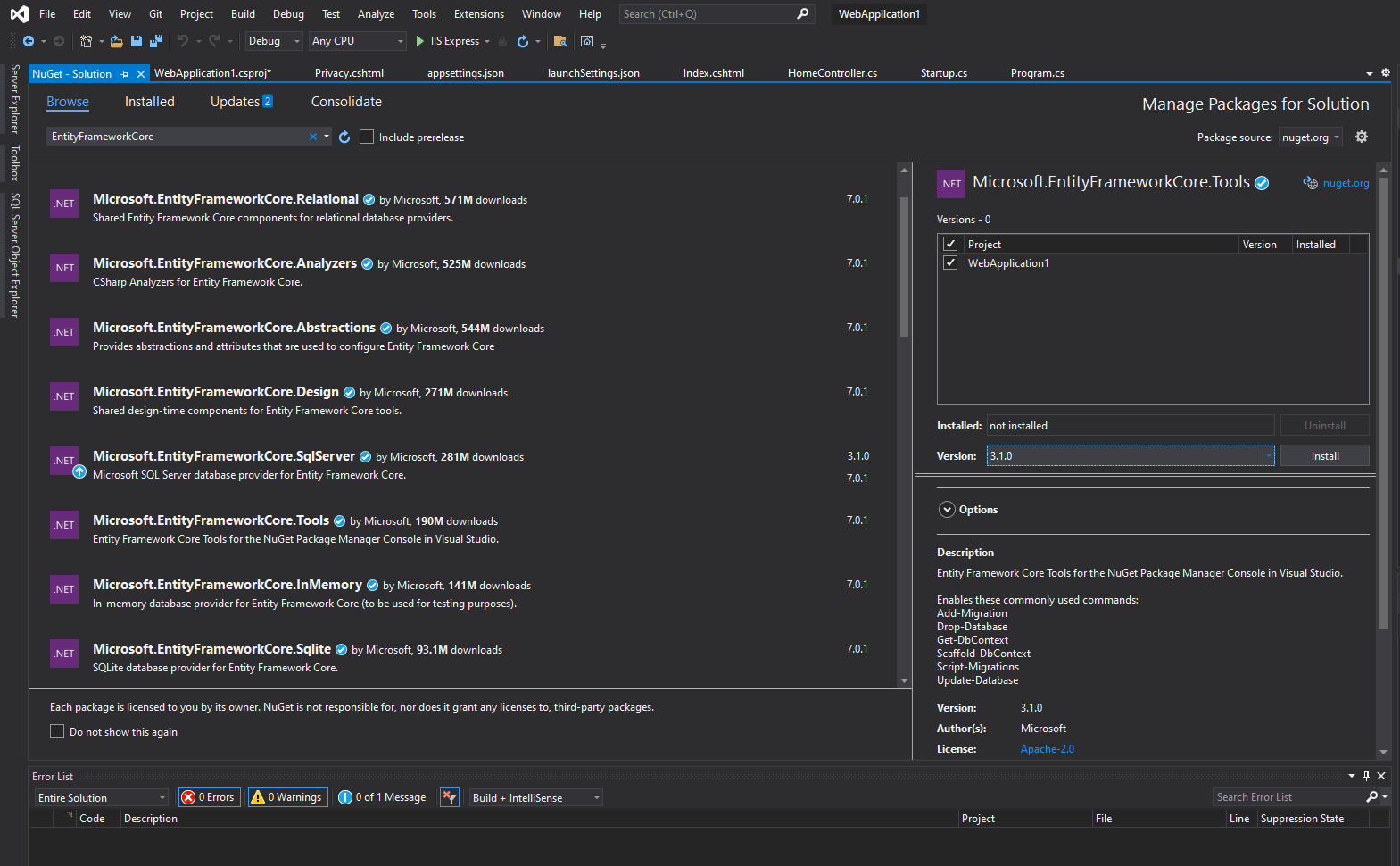
Tool Framework

6.5. Tool Framework

All Entity Frameworks Installed

6.6. All Entity Frameworks Installed — Running Script
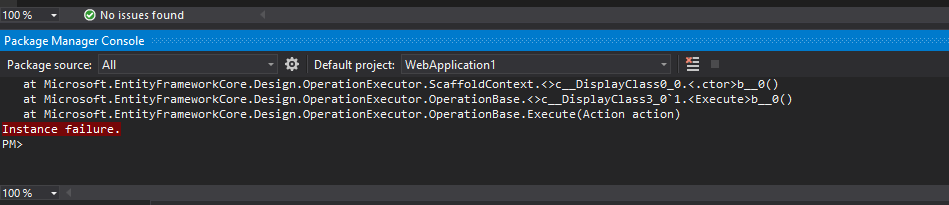
Instance Failure

6.7. Instance Failure

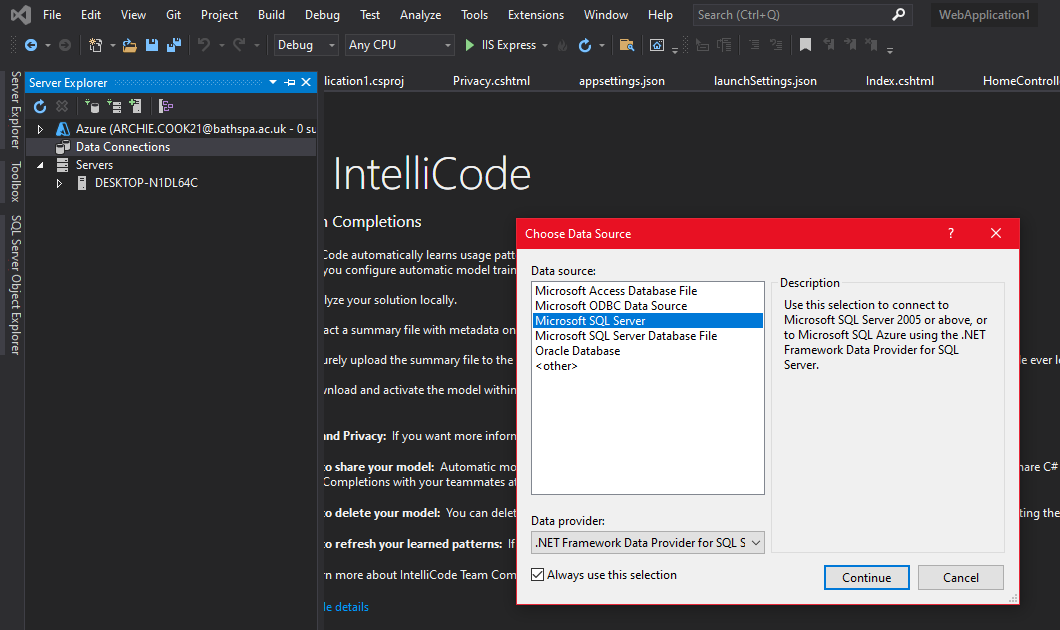
Using Server Explorer

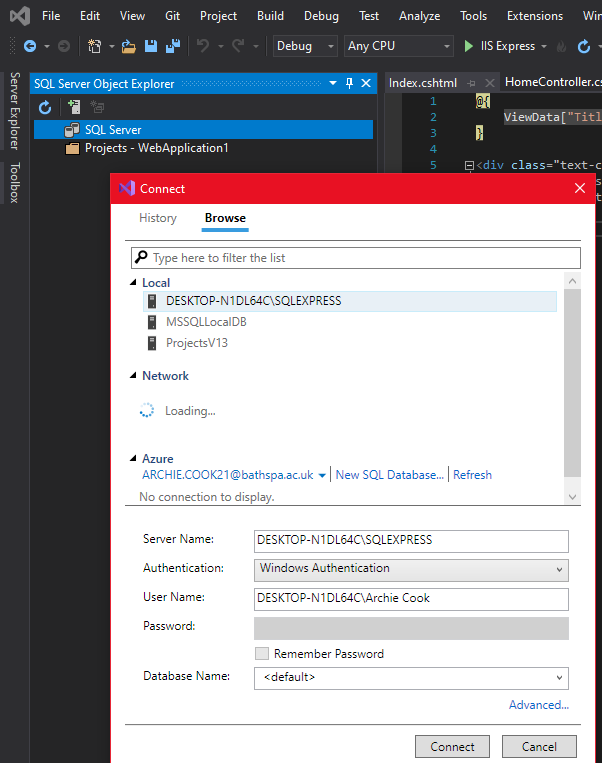
6.8. Using Server Explorer to Connect SQL Database
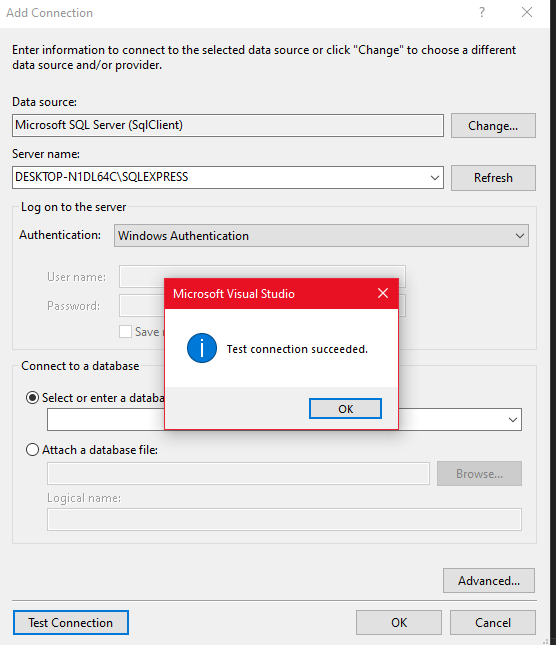
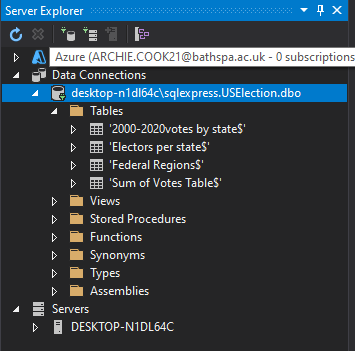
SQL Connection Success

6.9. SQL Connection Success

Entity Frameworks Installed

6.10. All Entity Frameworks Installed — Running Script
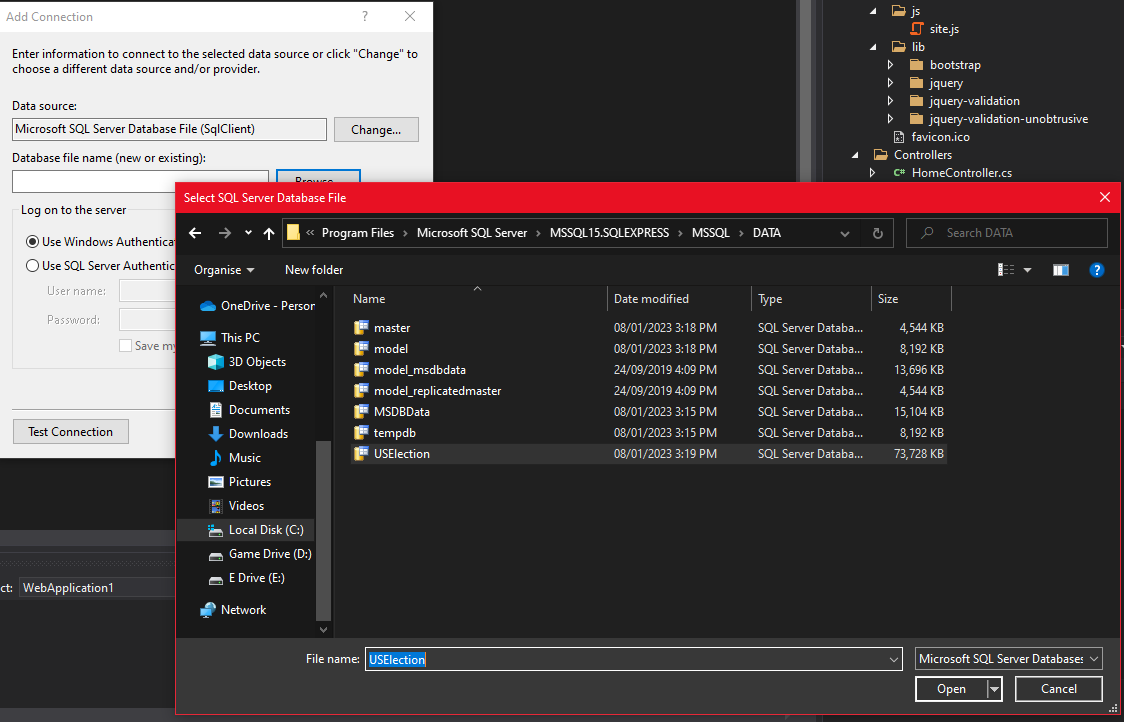
SQL Express Database Addition

6.11. Adding Database File for SQL Express
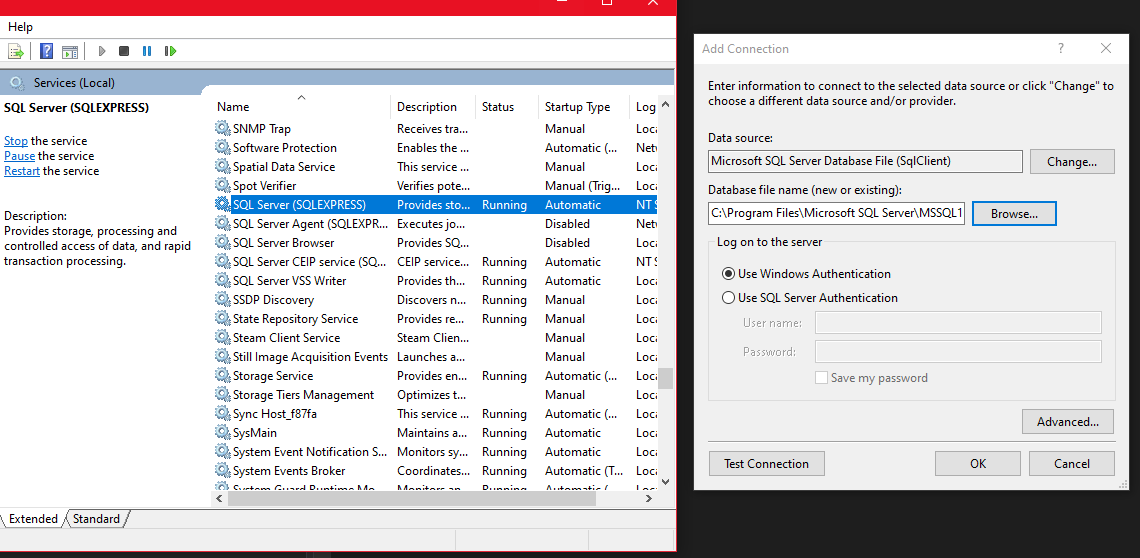
Restart Server to Add Database

6.12. Restarted Server to Add Database File
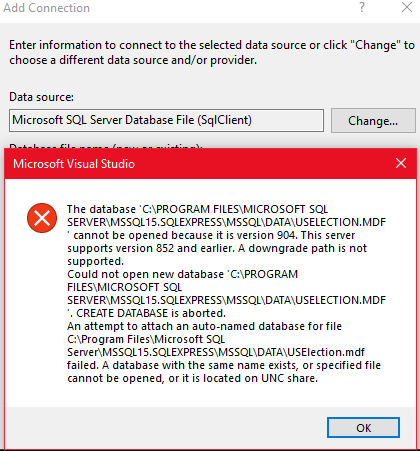
Error Message Downgrade

6.13. Error Message — Downgrade Required
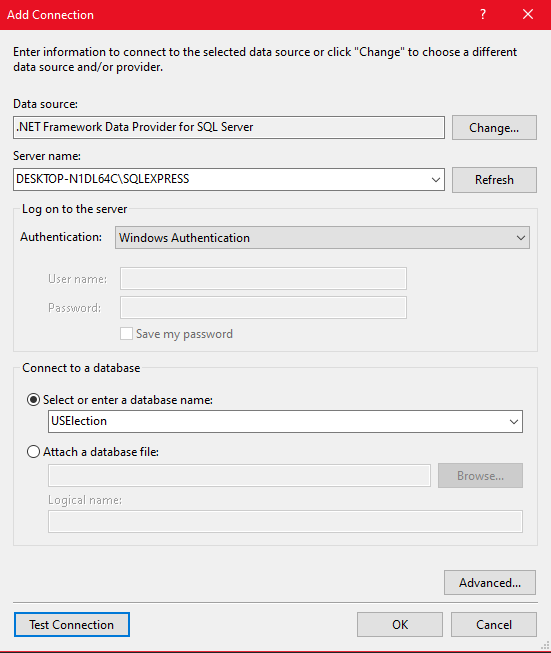
Manually Entered Database

6.14. Selected Other Database and Manually Entered Details
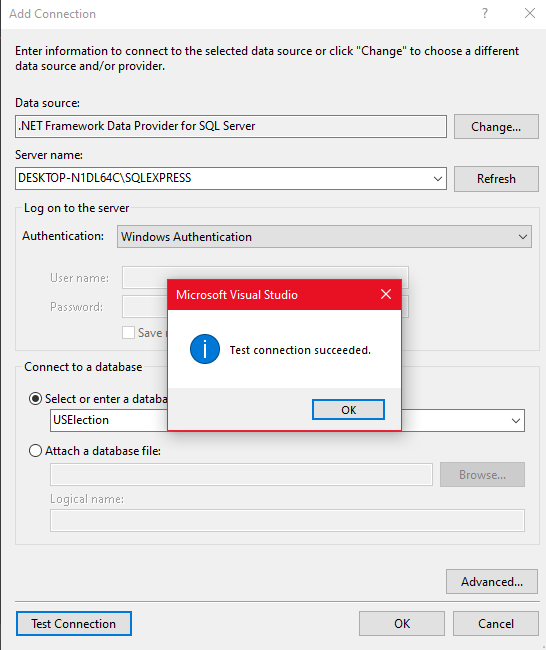
Connection Successful

6.15. Connection Successful

Database Loaded into VS

6.16. Database Loaded into Visual Studio
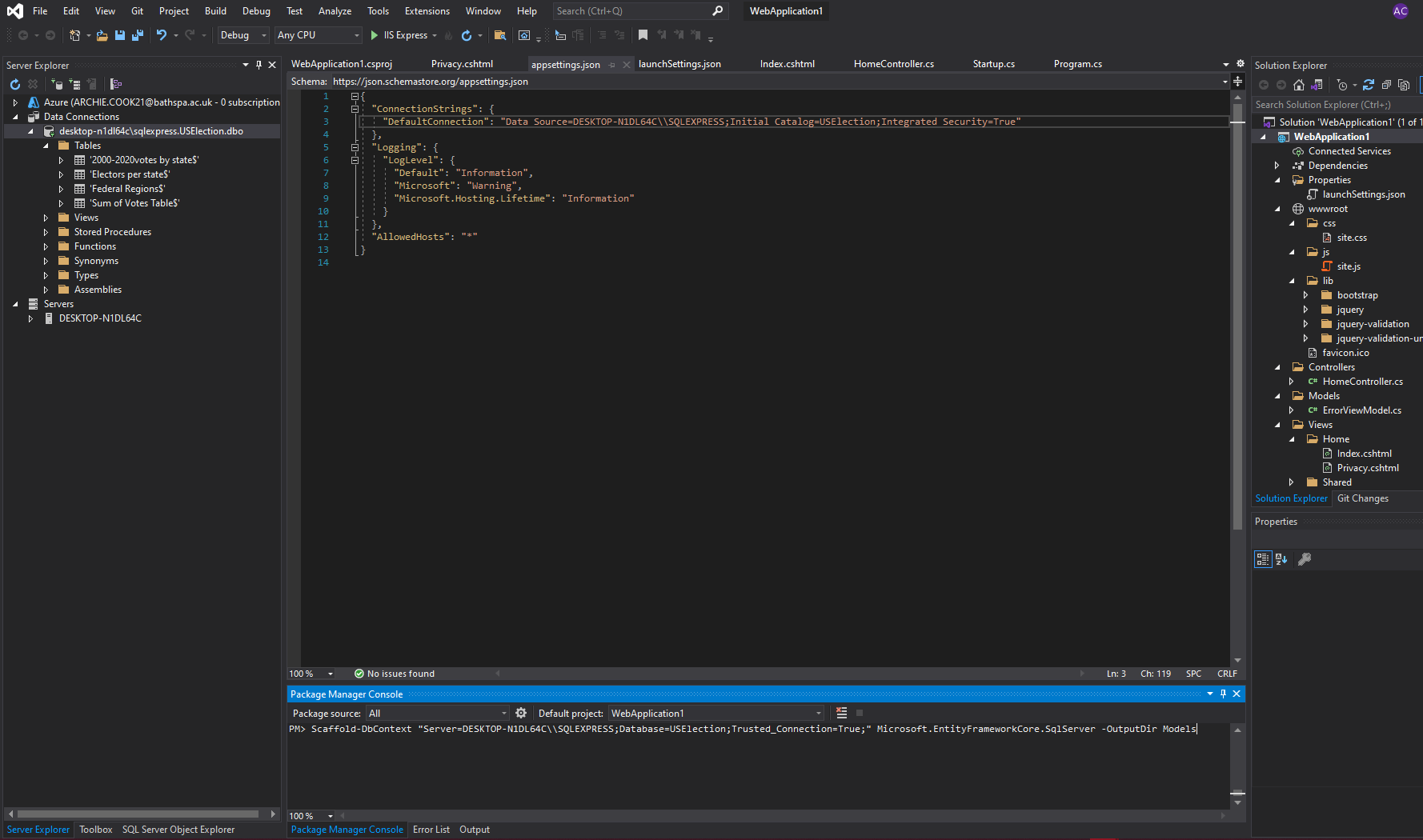
Frameworks Installed Run Script

6.17. All Entity Frameworks Installed — Run Script
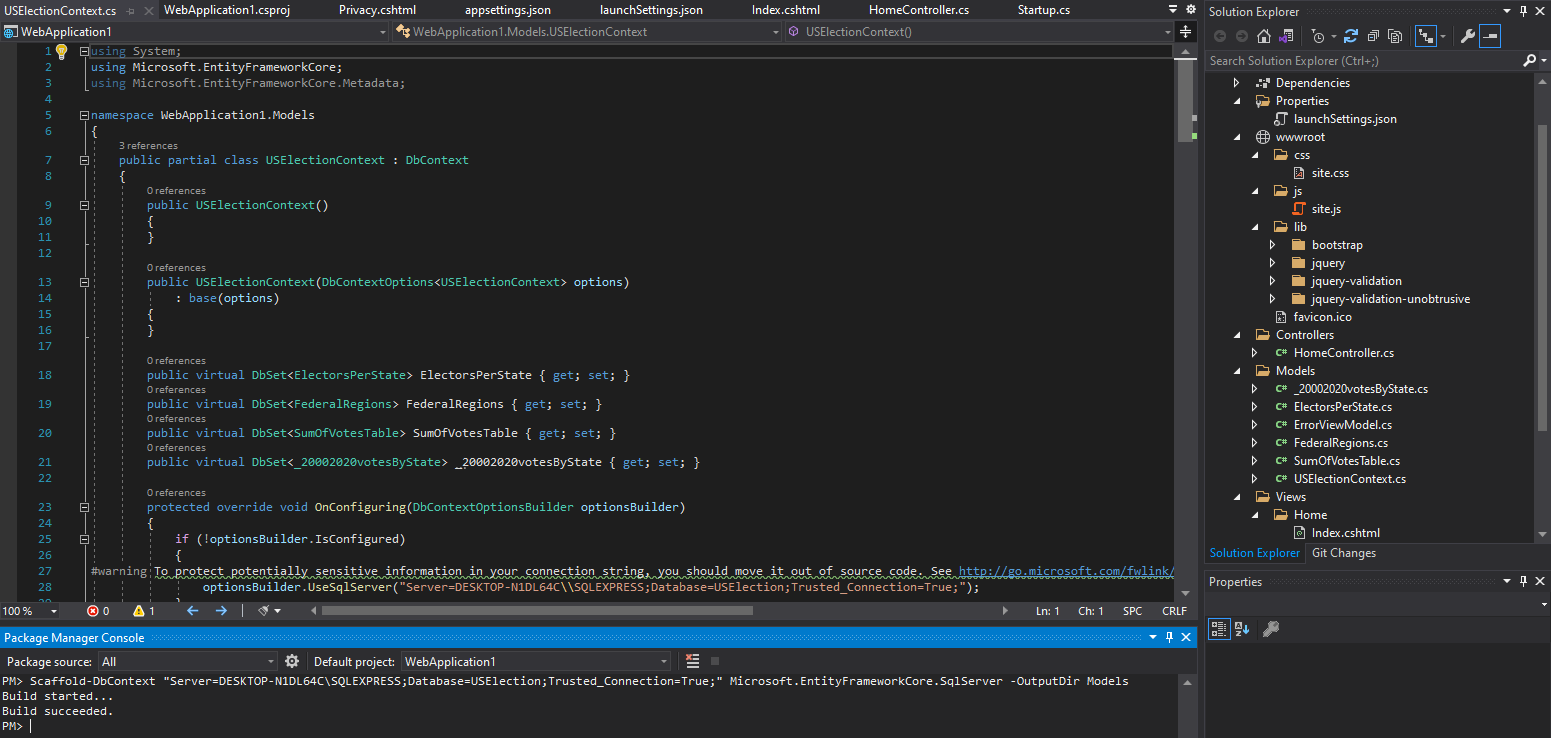
Database Models Set Up

6.18. Database Models All Set Up in VS Web App
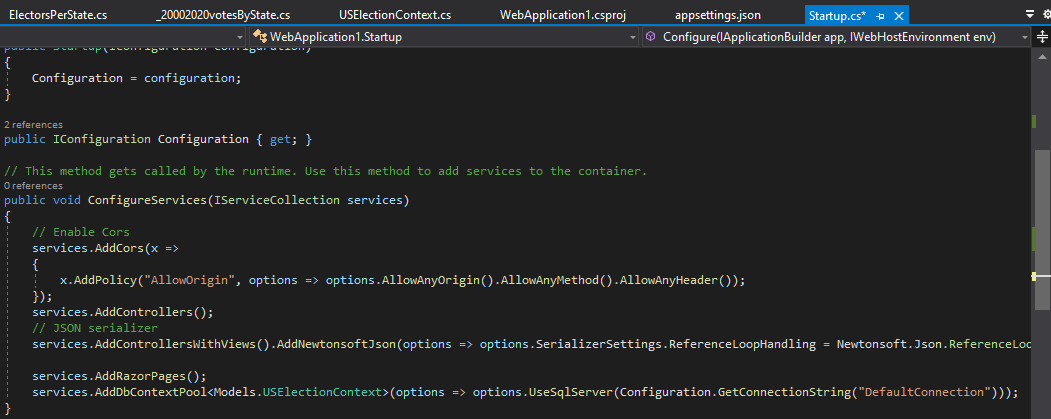
Connection to Database in Startup

6.19. Setting Up Connection to Database in VS Startup File
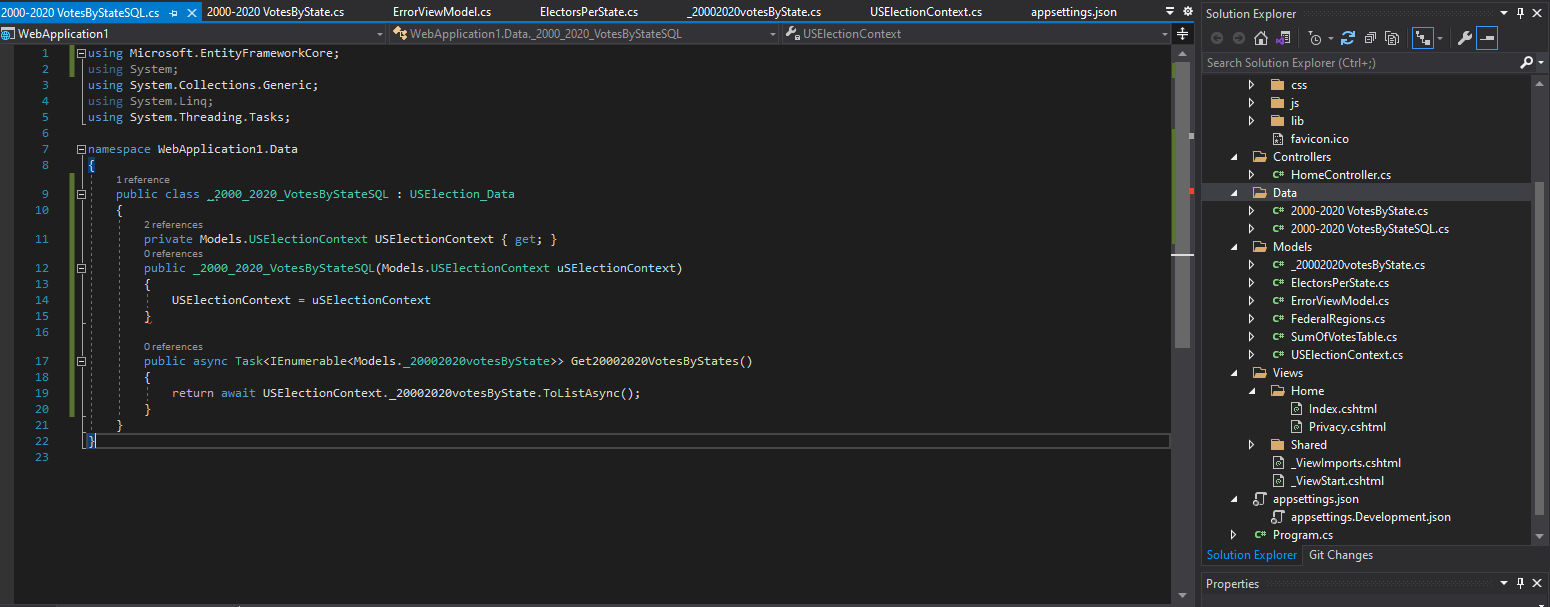
Creating 2000-2020 Class Interface

7. Creating 2000–2020 Class Interface to Test Data Display

Adding Normal and SQL Class Interfaces

7.1. Adding Both Normal and SQL Class Interfaces
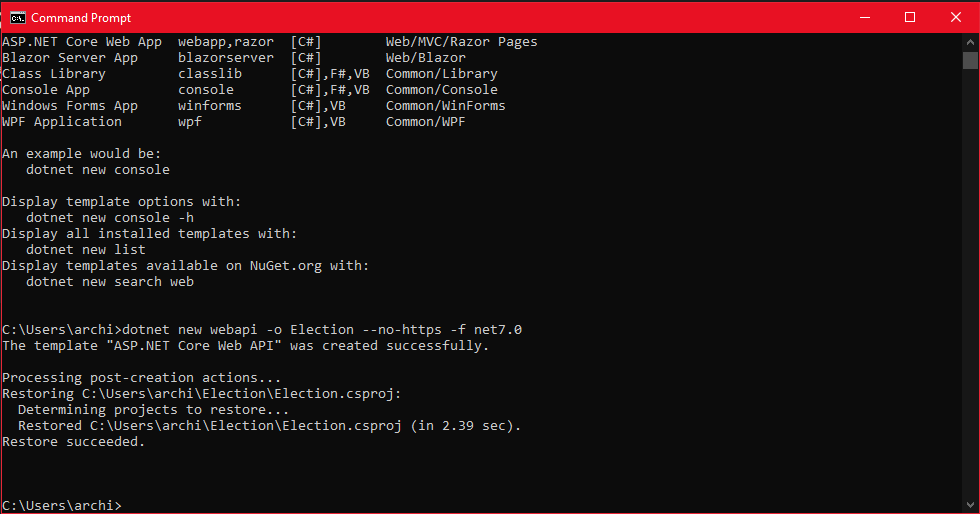
Redo Steps

8. Need to Redo All Steps and Move Forward
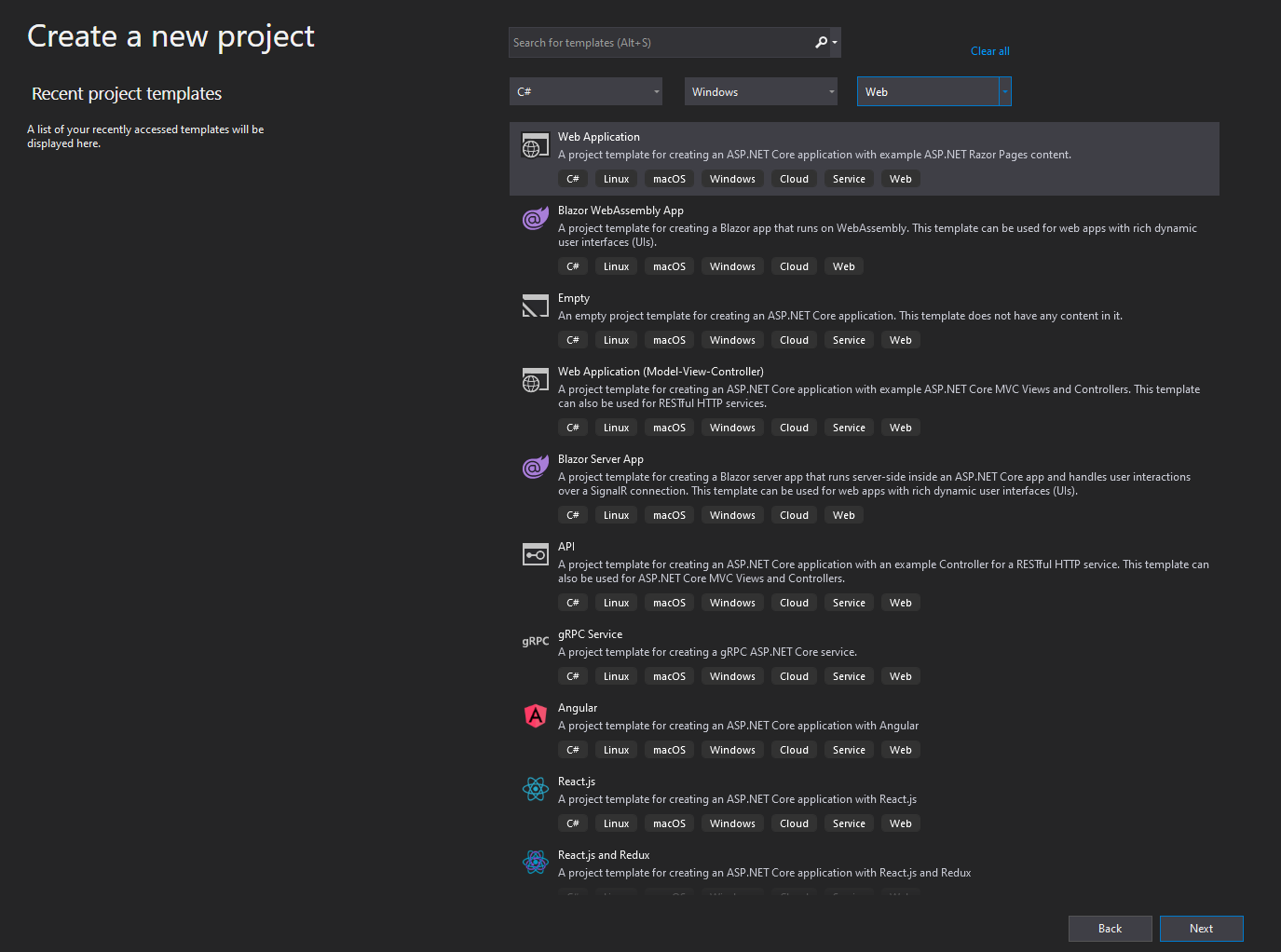
GUI Not Showing NET Core Web

8.1. GUI Not Showing .NET Core Web

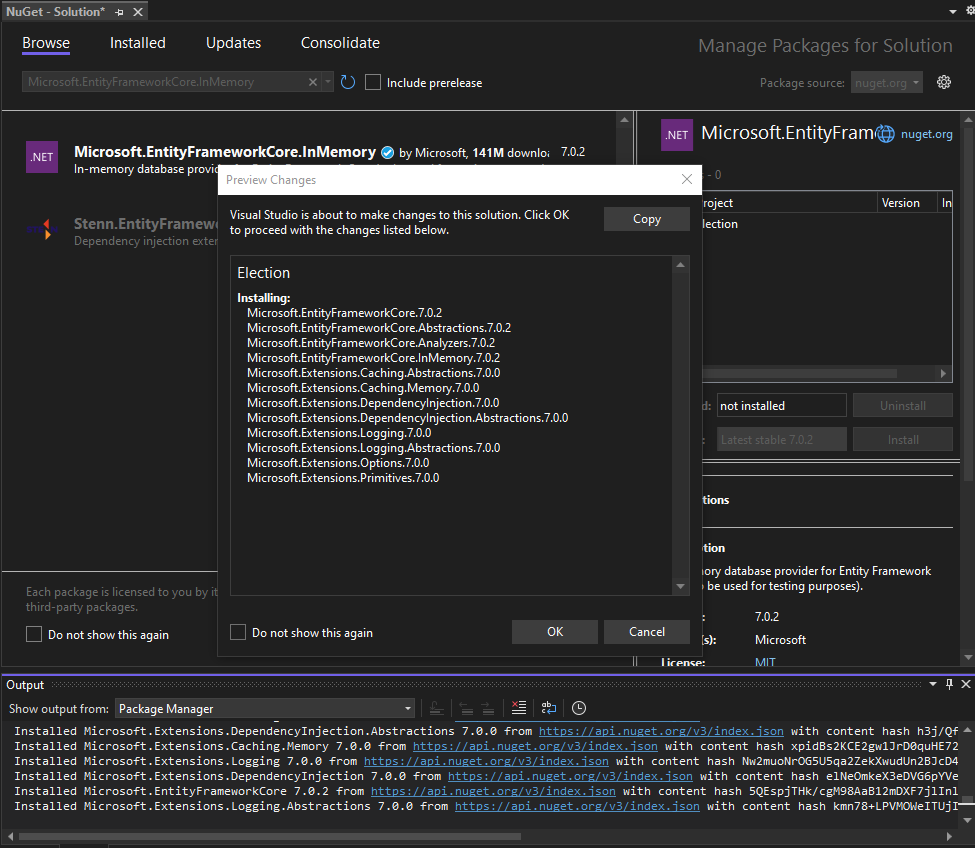
Installing InMemory EntityFramework

8.2. Installing InMemory Entity Framework
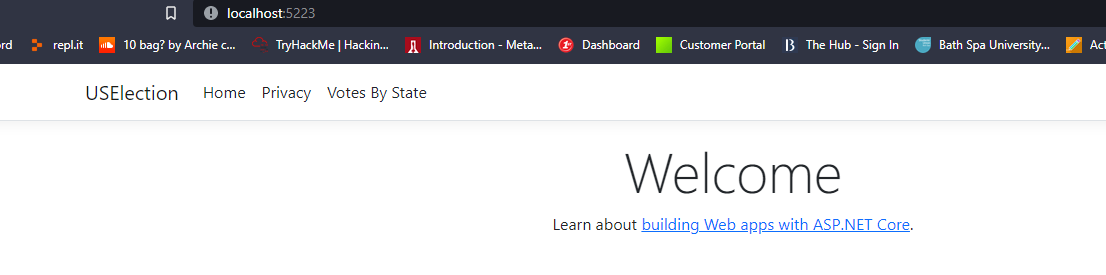
Website Up and Running

8.3. Website Up and Running

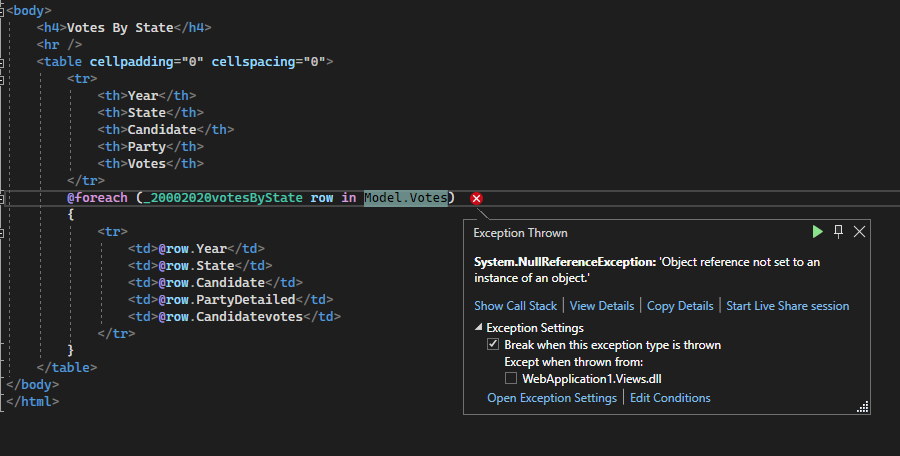
Throwing Null Error

8.4. Throwing Null Error

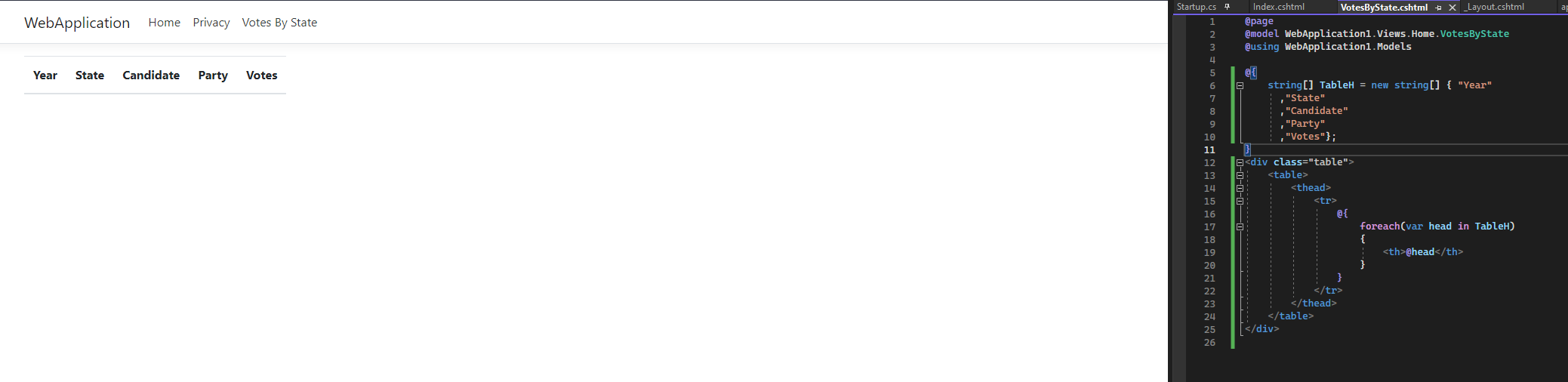
Dynamic Table Headings Created

8.5. Created Dynamic Table Headings

← Back to University Work